> ## Documentation Index
> Fetch the complete documentation index at: https://docs.plato.ae/llms.txt
> Use this file to discover all available pages before exploring further.
# Import and Export Items
> Export inventory items or import item data in bulk.
Use import and export when you need to work with many inventory items at once.
 ## Export Items
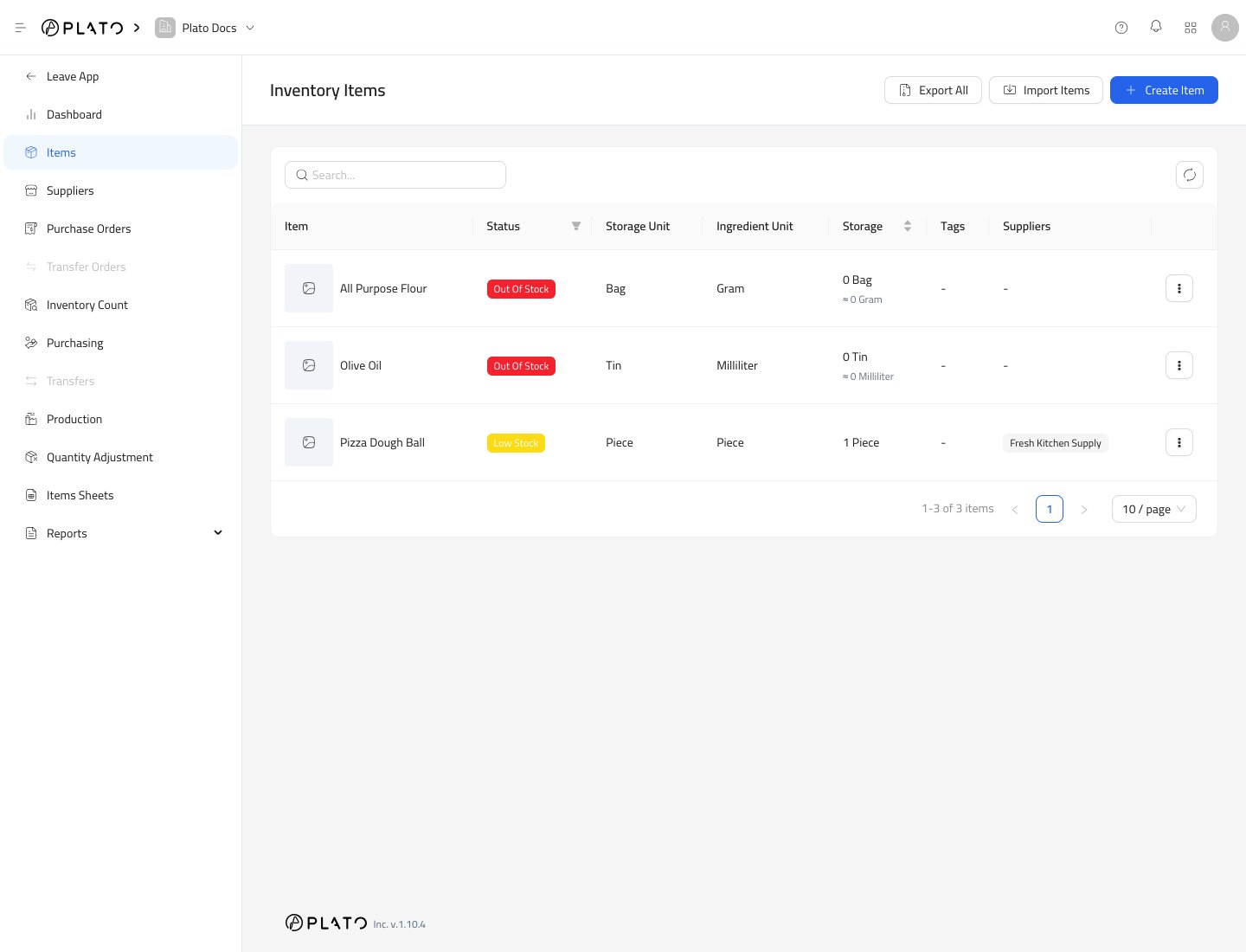
Click `Export All` from the Items page.
The export is useful when you want to review item names, SKUs, units, or current setup outside Plato.
## Import Items
Click `Import Items` to open the import window.
## Export Items
Click `Export All` from the Items page.
The export is useful when you want to review item names, SKUs, units, or current setup outside Plato.
## Import Items
Click `Import Items` to open the import window.
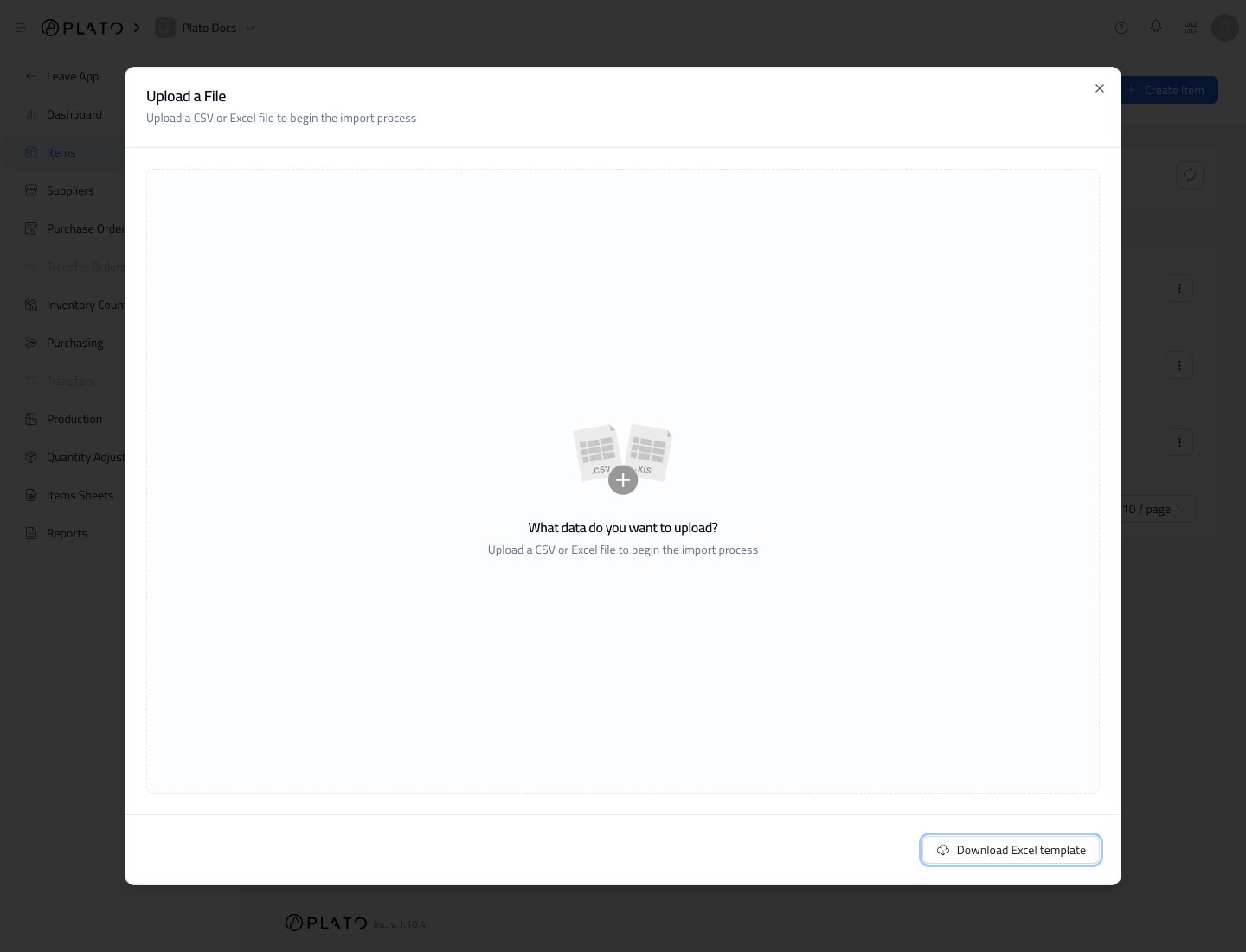
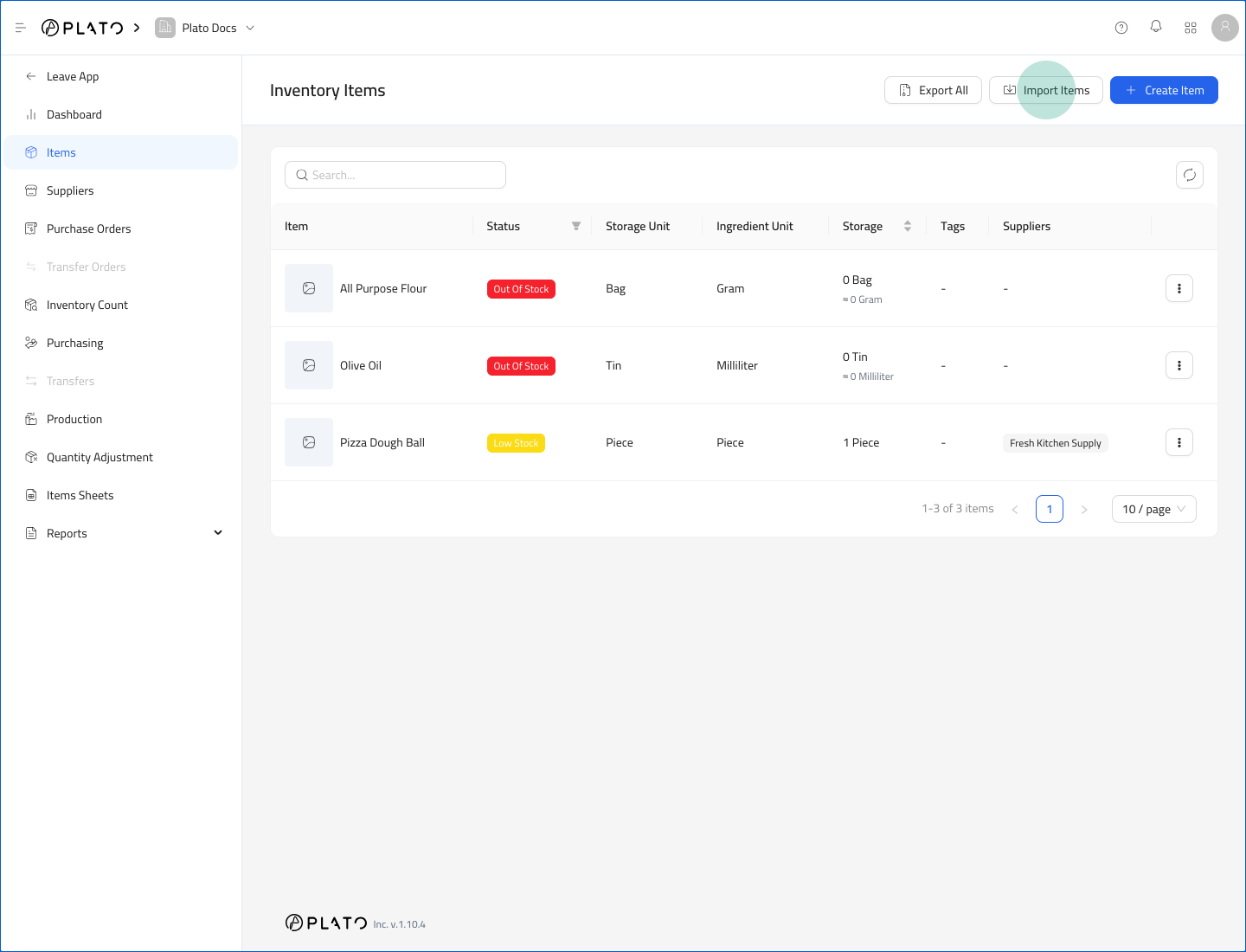 The import window lets you upload item data instead of creating every item manually.
 ## Before Importing
Check the file before uploading:
1. Item names should be clear and unique.
2. SKUs should not conflict with existing items.
3. Storage units and ingredient units should be consistent.
4. Conversion factors should be correct.
5. Minimum stock values should match how your team counts stock.
## After Importing
Open the Items list and check a few rows before using the imported items in purchasing, counts, production, or formulas.
## Before Importing
Check the file before uploading:
1. Item names should be clear and unique.
2. SKUs should not conflict with existing items.
3. Storage units and ingredient units should be consistent.
4. Conversion factors should be correct.
5. Minimum stock values should match how your team counts stock.
## After Importing
Open the Items list and check a few rows before using the imported items in purchasing, counts, production, or formulas.