> ## Documentation Index
> Fetch the complete documentation index at: https://docs.plato.ae/llms.txt
> Use this file to discover all available pages before exploring further.
# Consumption and Formulas
> Connect inventory usage to products, modifiers, other inventory items, and prepared-item formulas.
Consumption and Formula settings tell Plato how stock should be used.
Use Consumption Triggers when a menu product, modifier, or another item should consume this item. Use Formula when this item is made from other inventory items.
## Open the Item Settings Page
1. Go to `Inventory`.
2. Open `Items`.
3. Open the row action menu for the item.
4. Select `Edit Item`.
5. Scroll to `Consumption Triggers` or `Formula`.
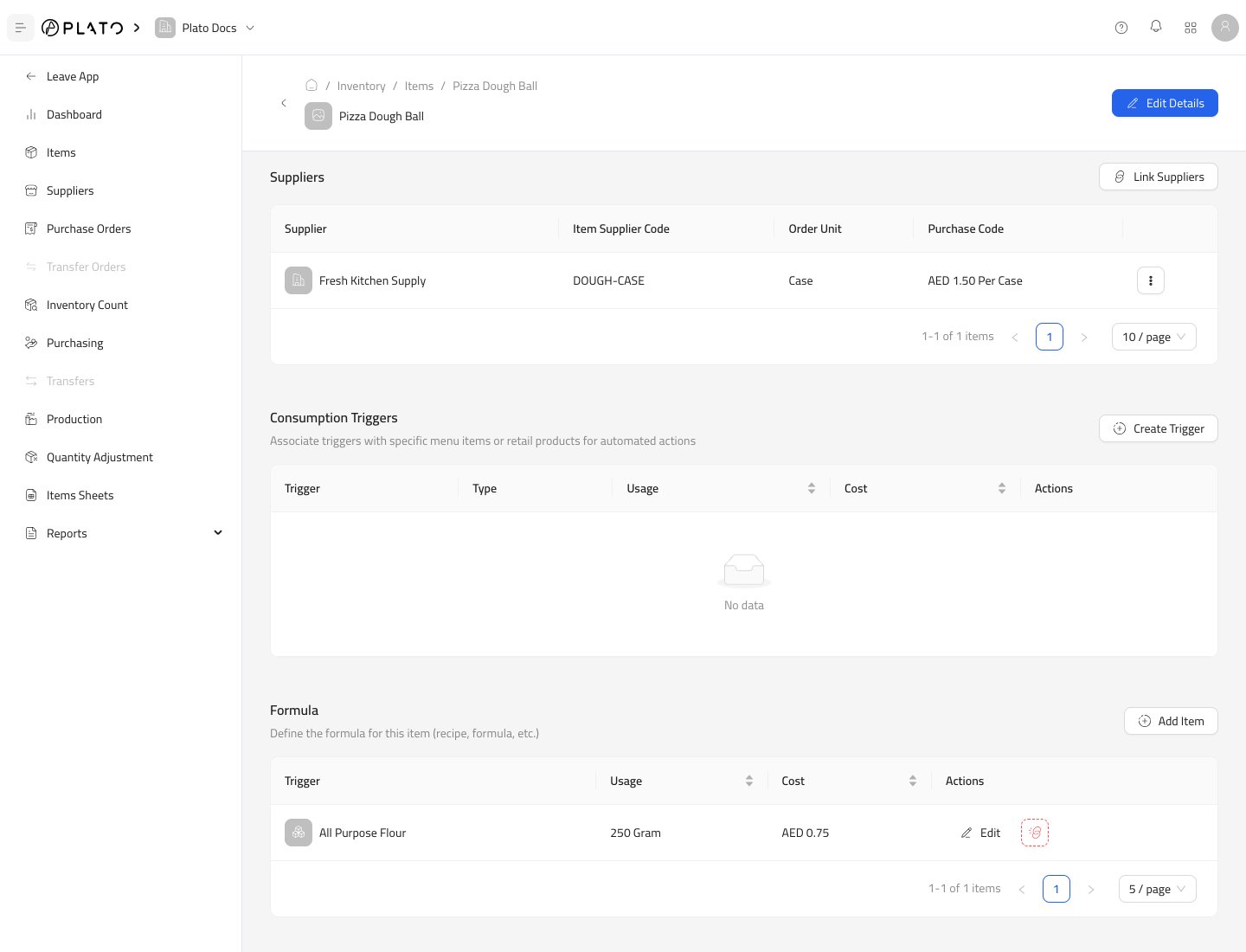 ## Add a Consumption Trigger
Use a consumption trigger when this item should be consumed by another action.
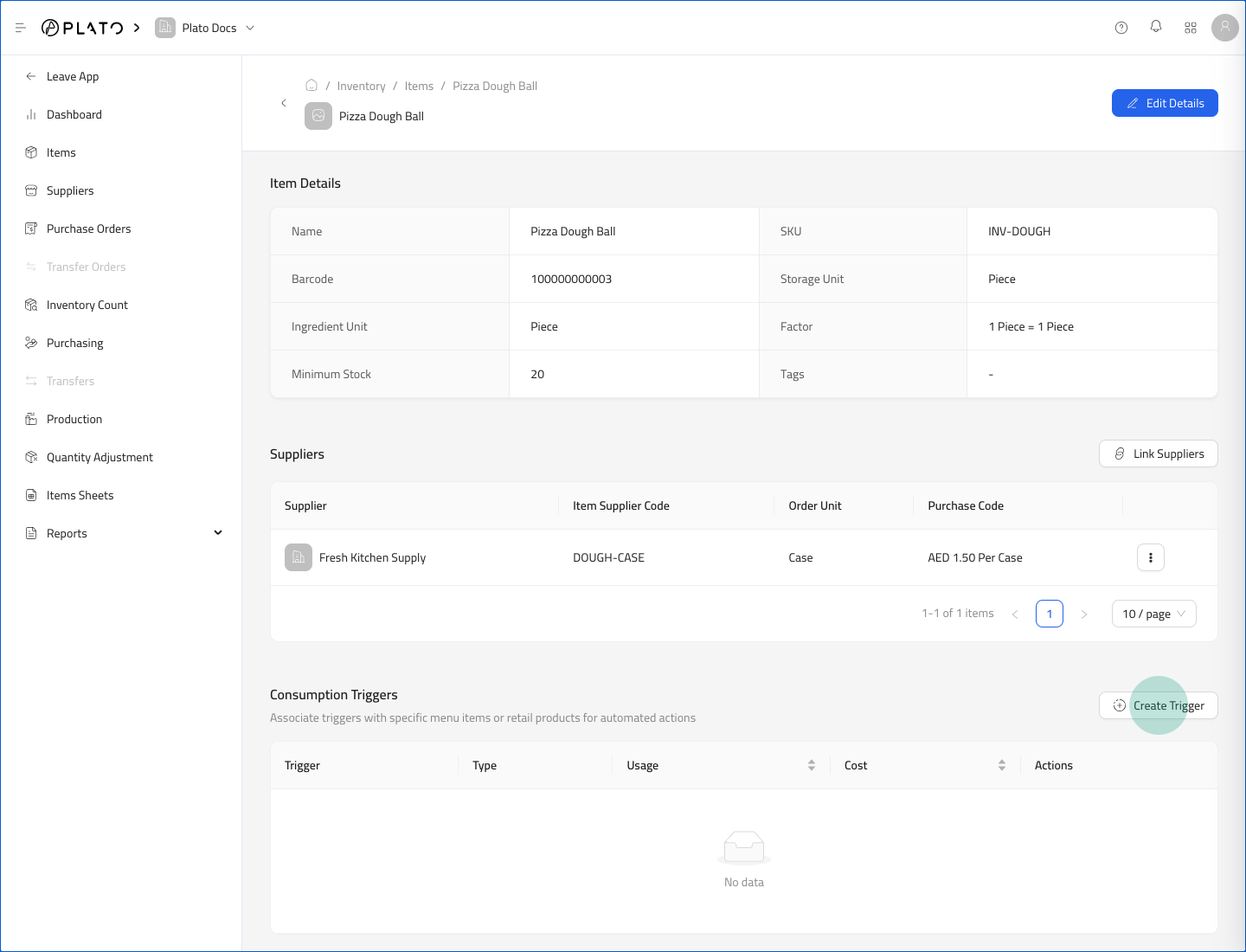
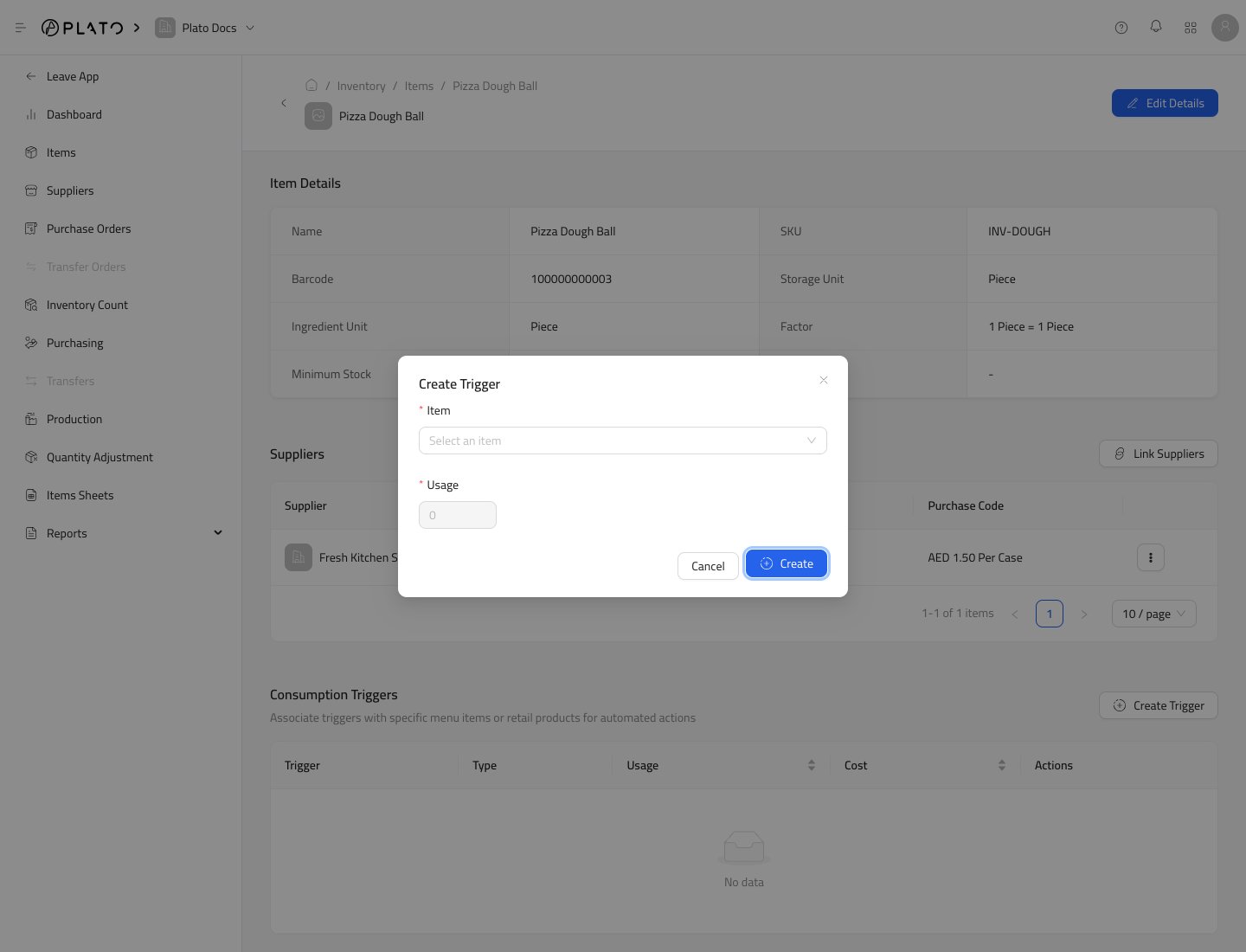
1. In `Consumption Triggers`, click `Create Trigger`.
## Add a Consumption Trigger
Use a consumption trigger when this item should be consumed by another action.
1. In `Consumption Triggers`, click `Create Trigger`.
 2. Choose the trigger type.
3. Select the product, modifier, or inventory item.
4. Enter the usage amount.
5. Click `Create`.
2. Choose the trigger type.
3. Select the product, modifier, or inventory item.
4. Enter the usage amount.
5. Click `Create`.
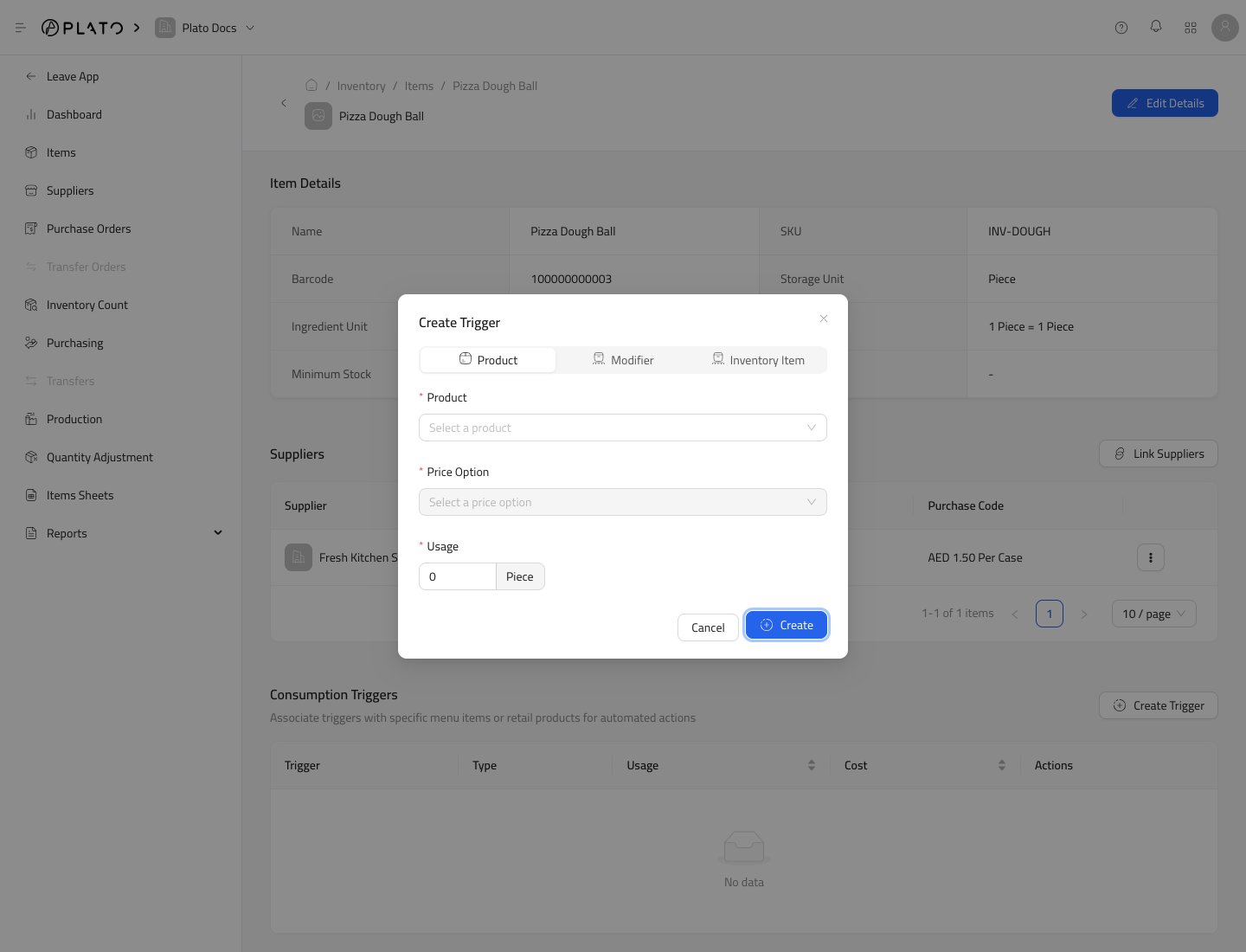 Usage is entered in the inventory item's ingredient unit.
## Add a Formula Ingredient
Use Formula when the current item is produced from other inventory items.
1. Open the item that will be produced.
2. Scroll to `Formula`.
3. Click `Add Item`.
Usage is entered in the inventory item's ingredient unit.
## Add a Formula Ingredient
Use Formula when the current item is produced from other inventory items.
1. Open the item that will be produced.
2. Scroll to `Formula`.
3. Click `Add Item`.
 4. Select the ingredient inventory item.
5. Enter the ingredient usage for one produced item.
6. Click `Create`.
4. Select the ingredient inventory item.
5. Enter the ingredient usage for one produced item.
6. Click `Create`.
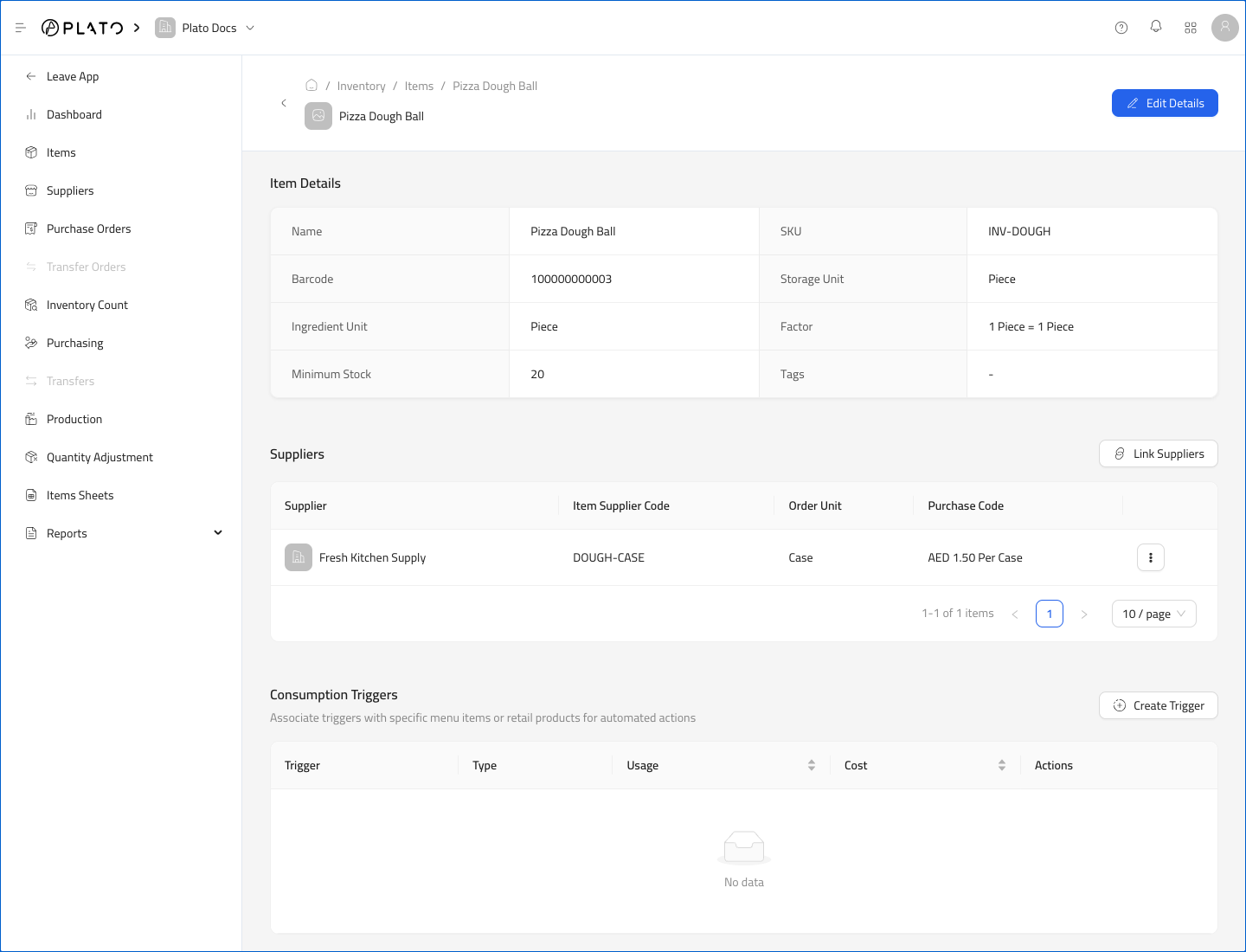
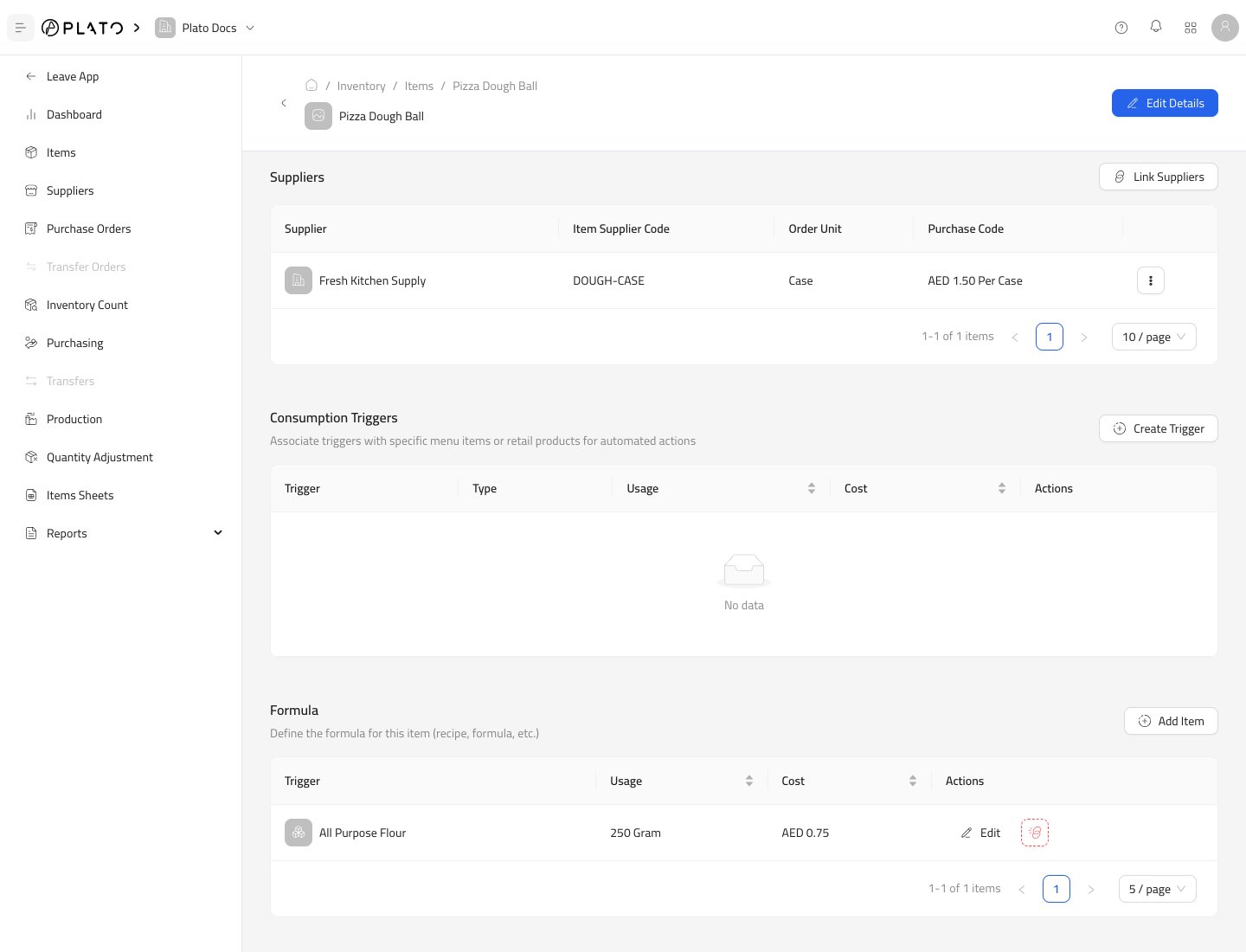
 After saving, the ingredient appears in the Formula table.
 ## Example Formula
For a prepared item such as `Pizza Dough Ball`:
1. Create the ingredient items first, such as flour and oil.
2. Create the produced item, such as pizza dough.
3. Open the produced item.
4. Add each ingredient in Formula.
5. Enter the usage required for one produced item.
When a Production record is submitted for the produced item, Plato adds the produced quantity and deducts the formula ingredients.
## Edit or Remove Usage
Use `Edit` on a trigger or formula row to change the usage quantity.
Remove a row when that product, modifier, item, or formula ingredient should no longer affect stock.
## Example Formula
For a prepared item such as `Pizza Dough Ball`:
1. Create the ingredient items first, such as flour and oil.
2. Create the produced item, such as pizza dough.
3. Open the produced item.
4. Add each ingredient in Formula.
5. Enter the usage required for one produced item.
When a Production record is submitted for the produced item, Plato adds the produced quantity and deducts the formula ingredients.
## Edit or Remove Usage
Use `Edit` on a trigger or formula row to change the usage quantity.
Remove a row when that product, modifier, item, or formula ingredient should no longer affect stock.