> ## Documentation Index
> Fetch the complete documentation index at: https://docs.plato.ae/llms.txt
> Use this file to discover all available pages before exploring further.
# Répartissez un paiement en espèces et par carte
> Divisez le montant dû en paiements distincts et enregistrez chaque méthode.
Utilisez le paiement fractionné lorsqu’un chèque reste une seule commande, mais que le client souhaite payer le total en utilisant plusieurs modes de paiement.
 ## Paiement ouvert
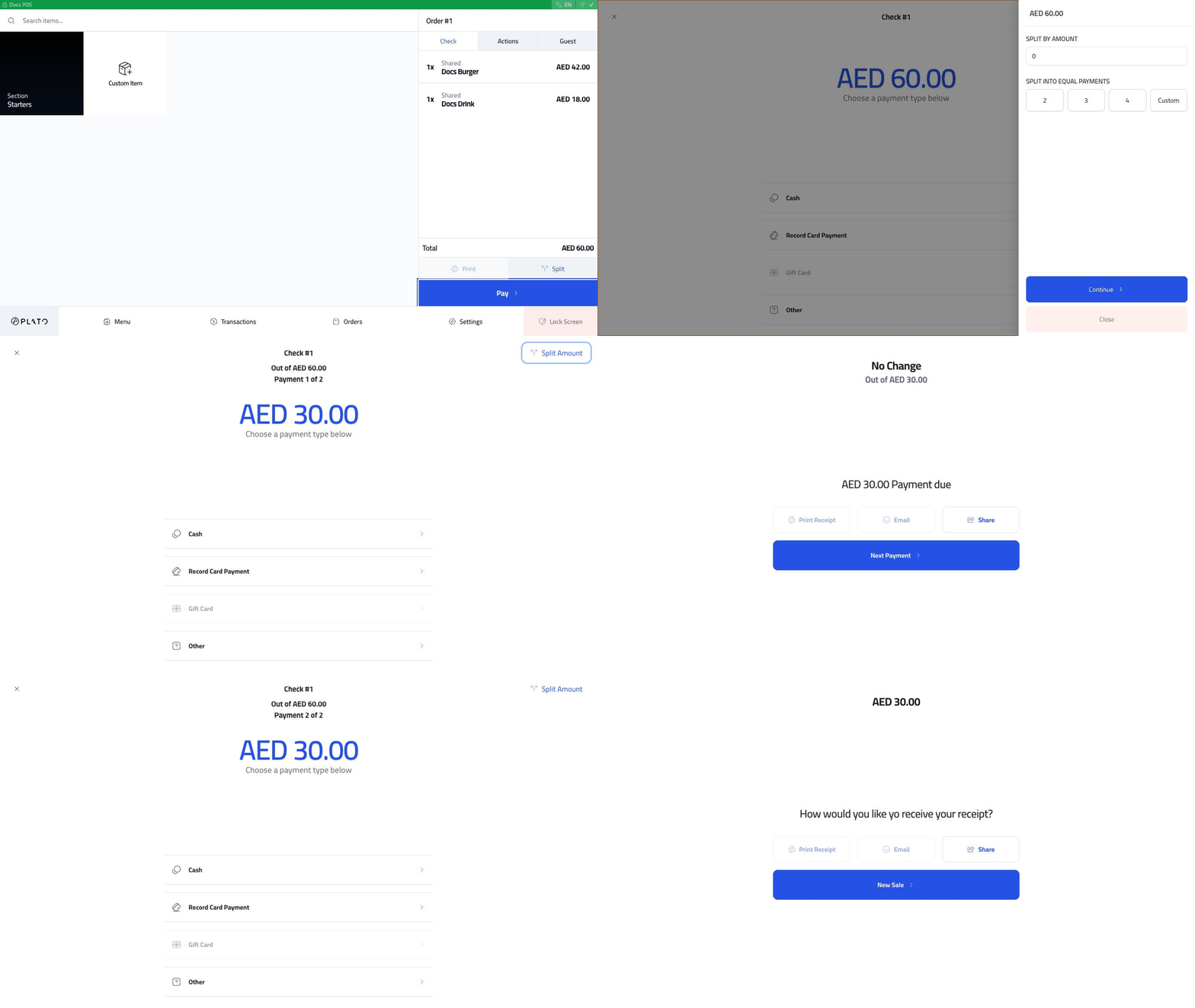
Commencez à partir d'une commande envoyée et cliquez sur `Pay`.
## Paiement ouvert
Commencez à partir d'une commande envoyée et cliquez sur `Pay`.
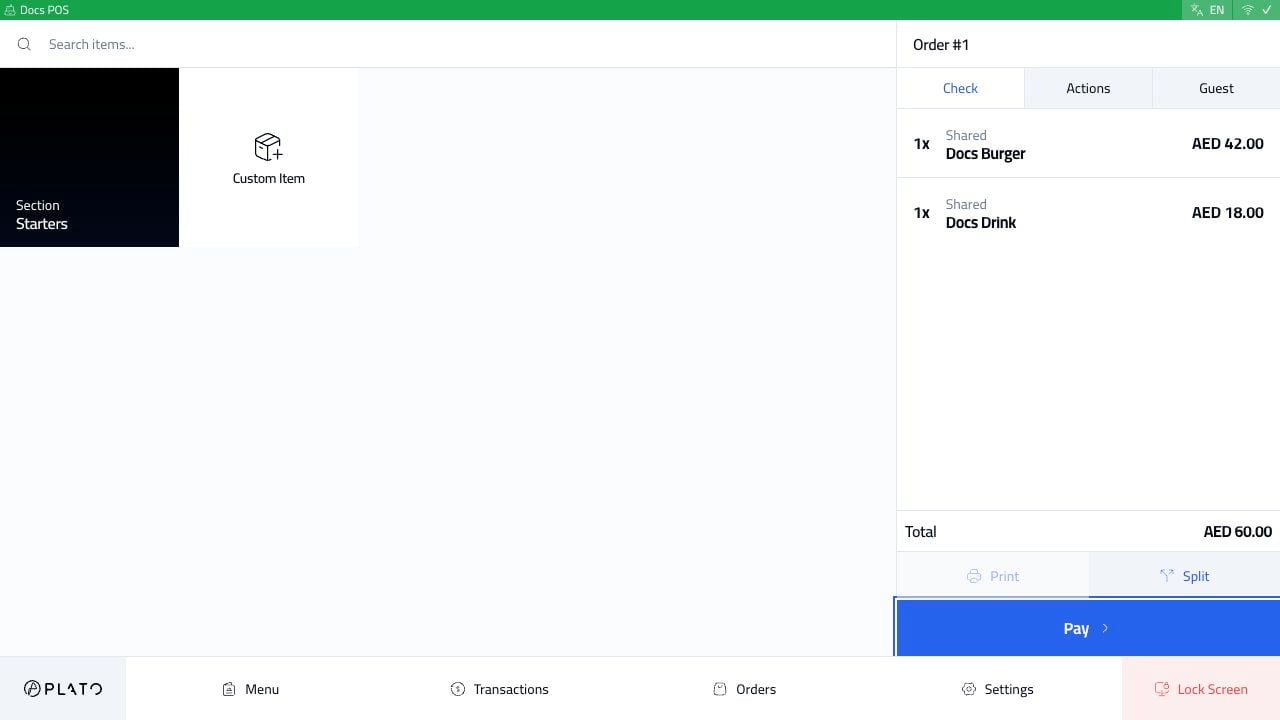 L'écran de paiement affiche le montant total dû et les modes de paiement disponibles.
 ## Choisissez le montant partagé
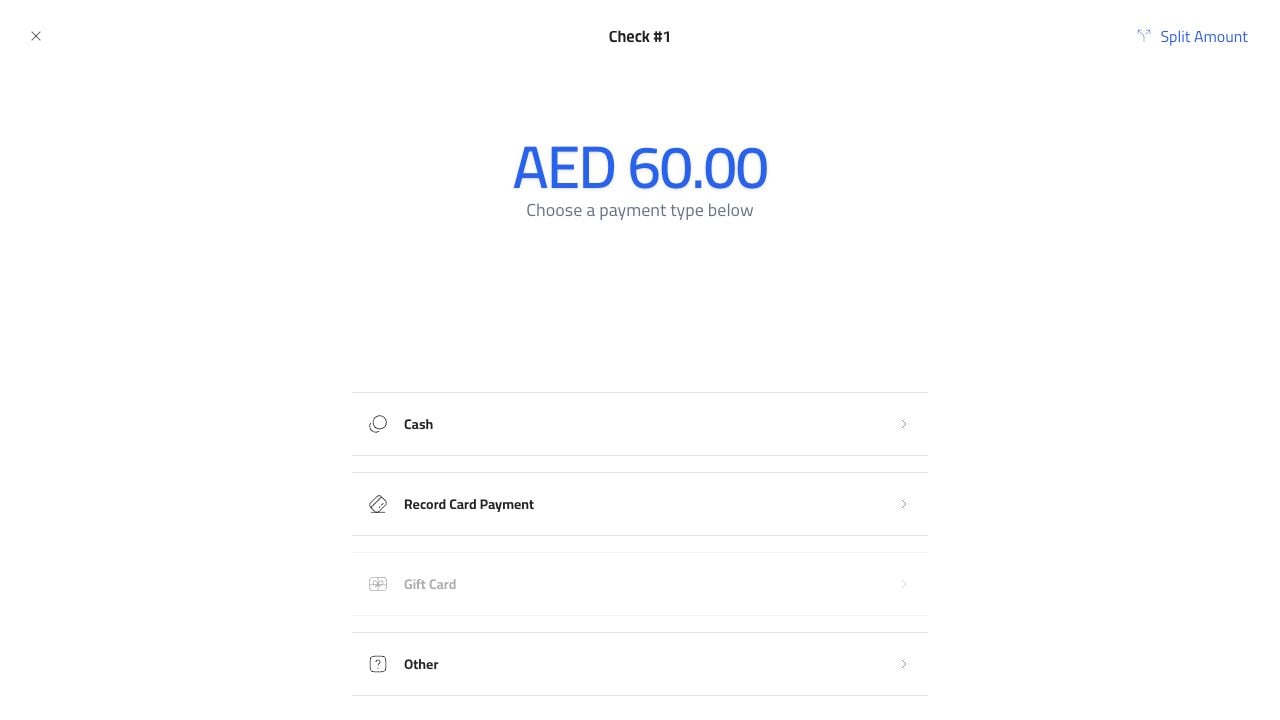
Cliquez sur `Split Amount`.
## Choisissez le montant partagé
Cliquez sur `Split Amount`.
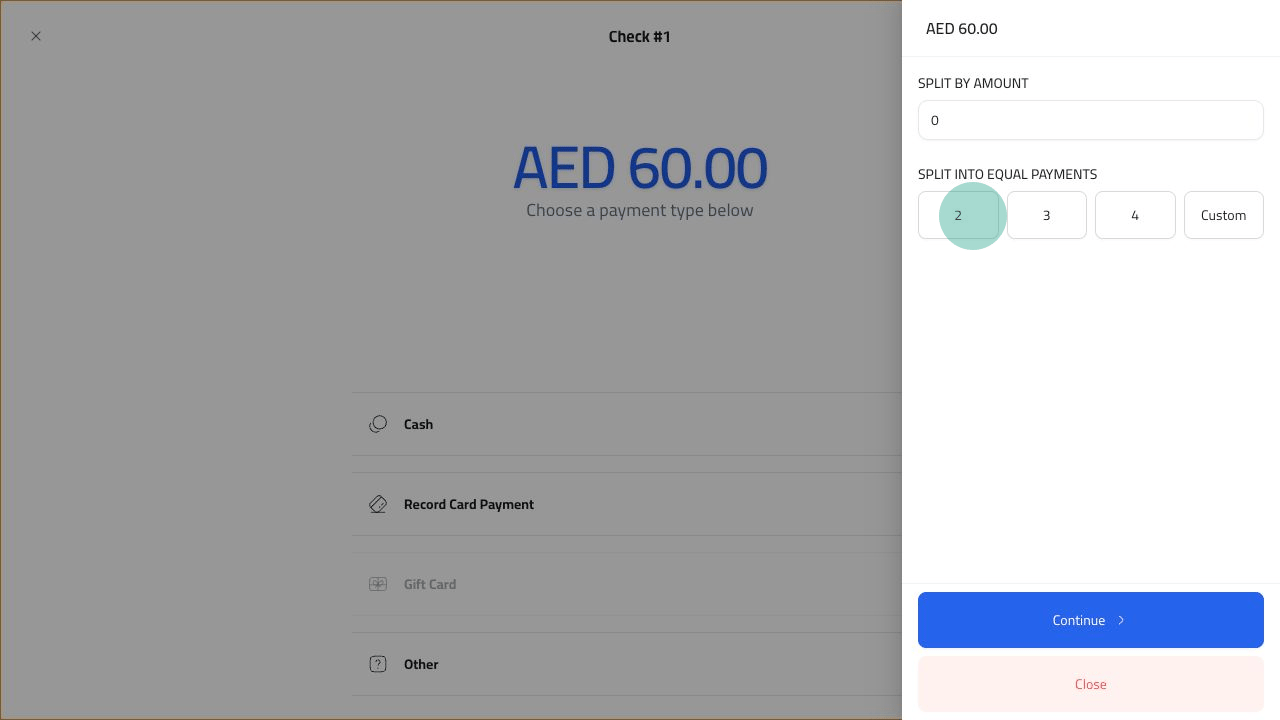 Choisissez une répartition égale, telle que `2`, `3` ou `4`, ou utilisez un montant personnalisé lorsque les paiements ne sont pas égaux.
## Prendre le paiement 1
Après avoir choisi `2`, Plato affiche `Payment 1 of 2`.
Choisissez une répartition égale, telle que `2`, `3` ou `4`, ou utilisez un montant personnalisé lorsque les paiements ne sont pas égaux.
## Prendre le paiement 1
Après avoir choisi `2`, Plato affiche `Payment 1 of 2`.
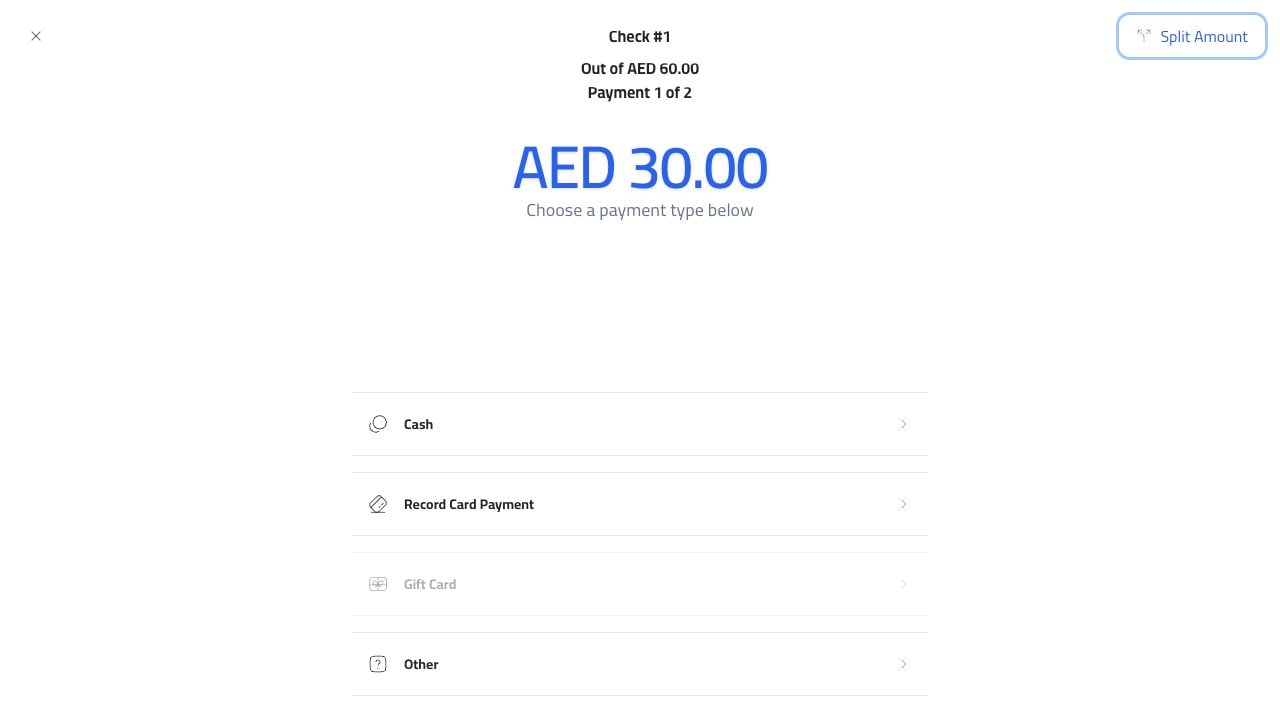 Choisissez le mode de paiement pour la première partie. Dans cet exemple, la première moitié est en espèces.
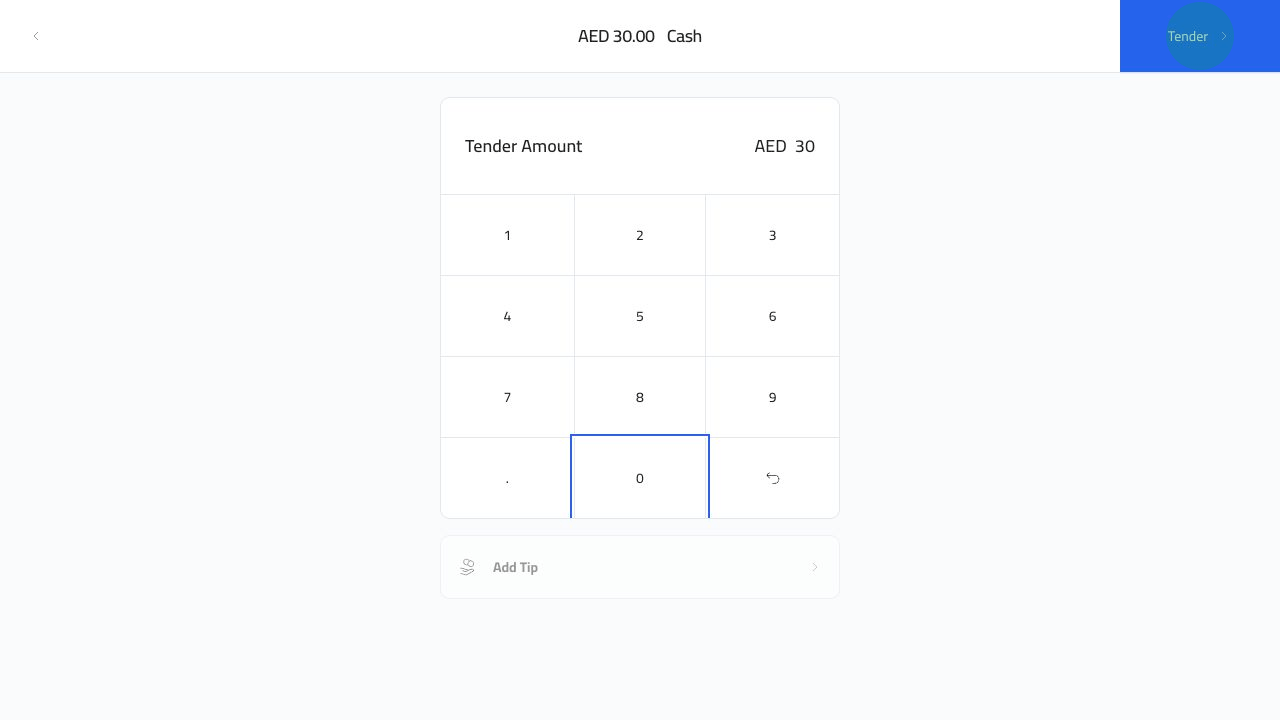
Entrez le paiement en espèces et cliquez sur `Tender`.
Choisissez le mode de paiement pour la première partie. Dans cet exemple, la première moitié est en espèces.
Entrez le paiement en espèces et cliquez sur `Tender`.
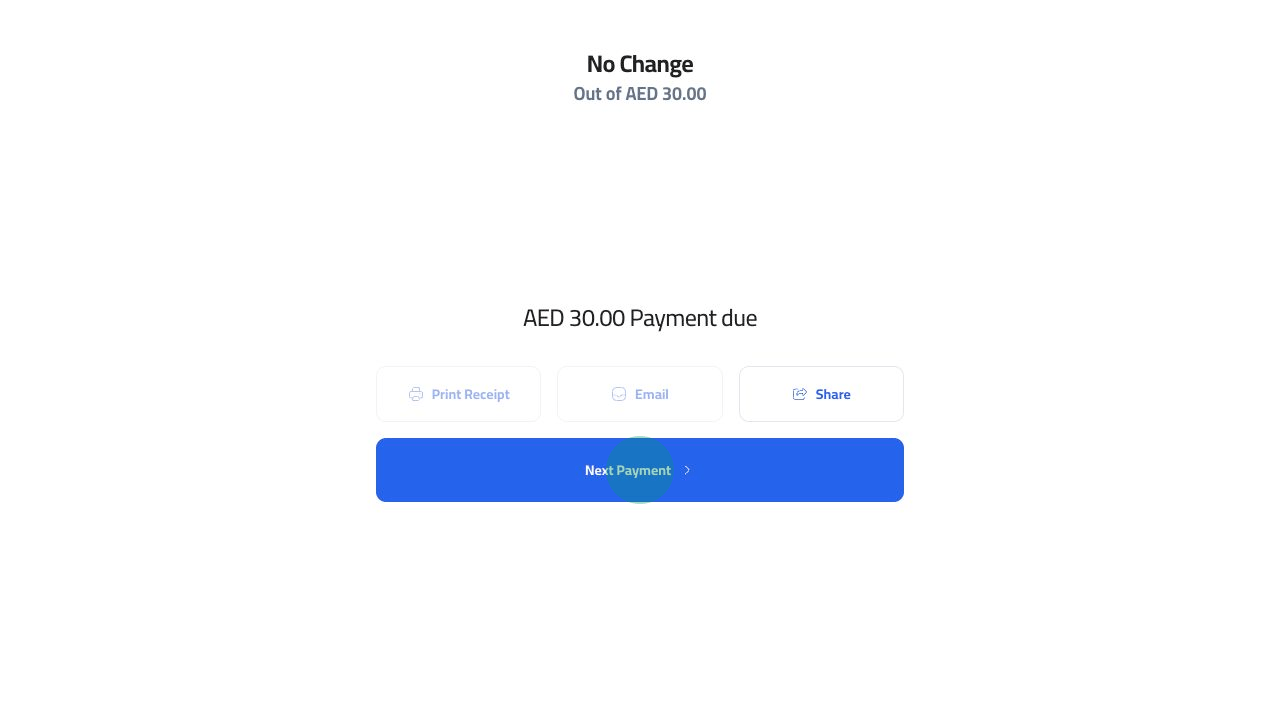
 Plato confirme le premier paiement et propose `Next Payment`.
 ## Prendre le paiement 2
Cliquez sur `Next Payment`. Plato affiche `Payment 2 of 2`.
## Prendre le paiement 2
Cliquez sur `Next Payment`. Plato affiche `Payment 2 of 2`.
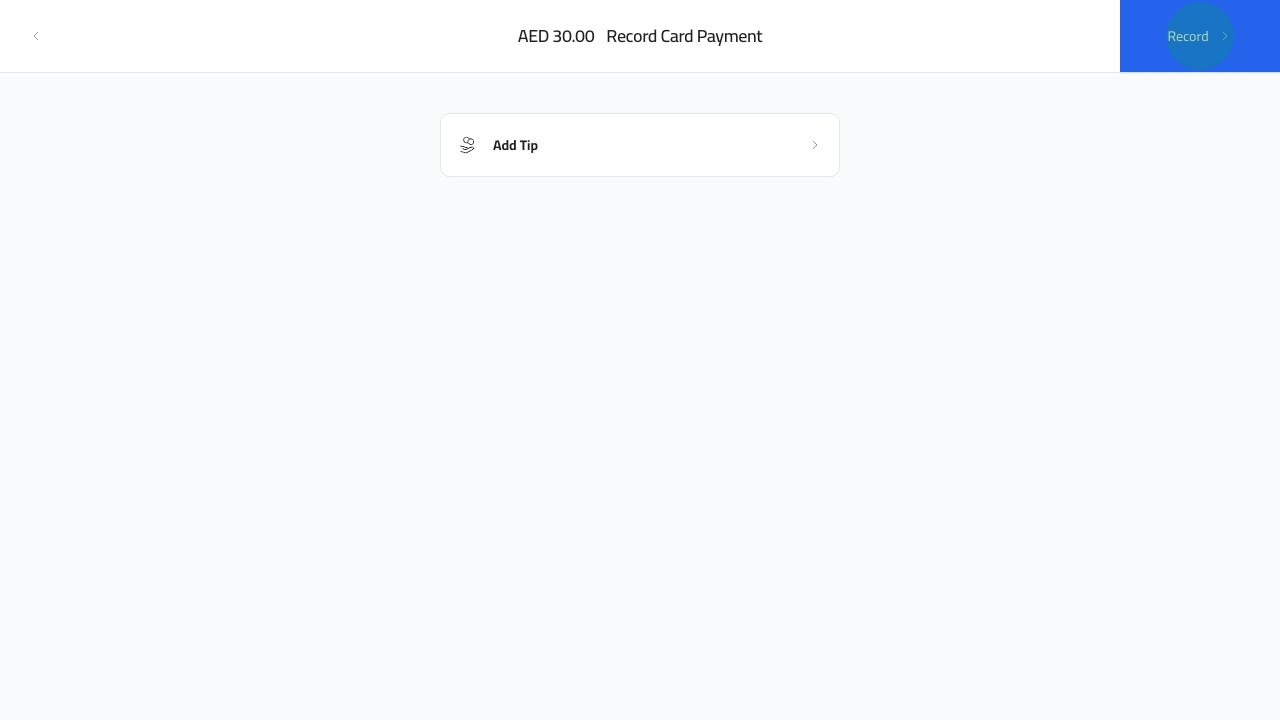
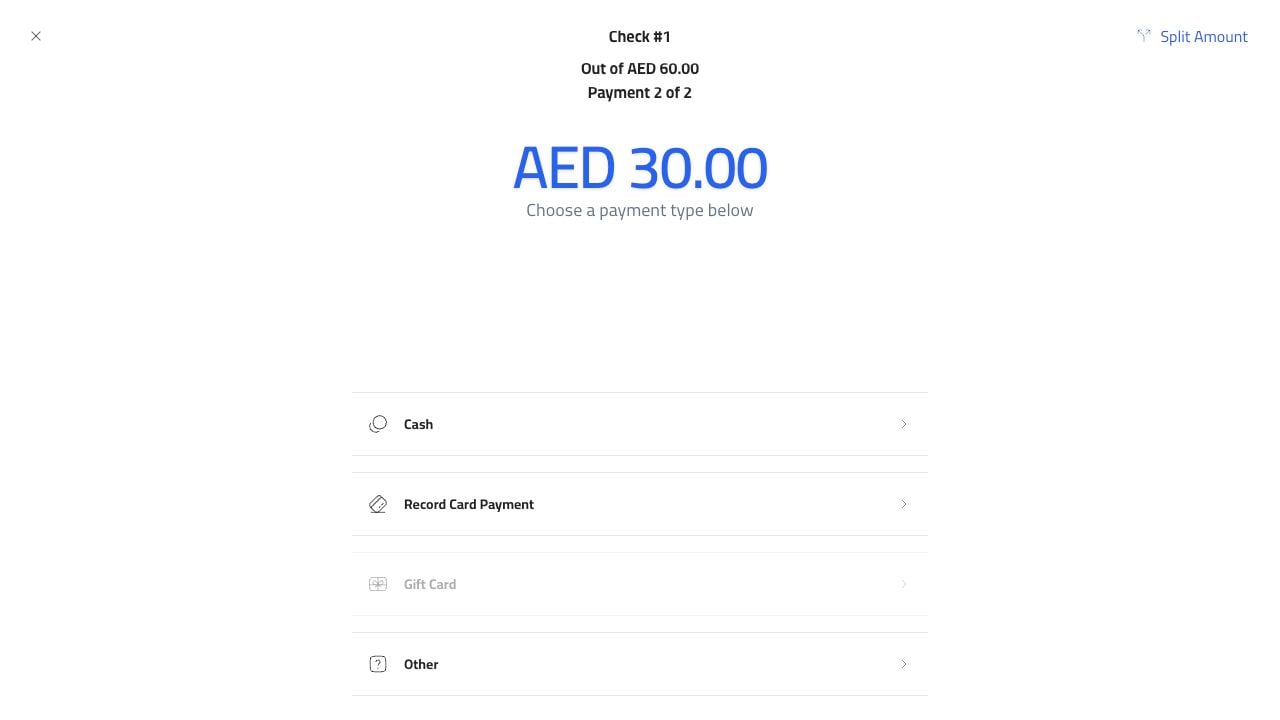 Choisissez `Record Card Payment` pour la seconde moitié, puis cliquez sur `Record` une fois le paiement terminal approuvé.
 ## Fermer la commande
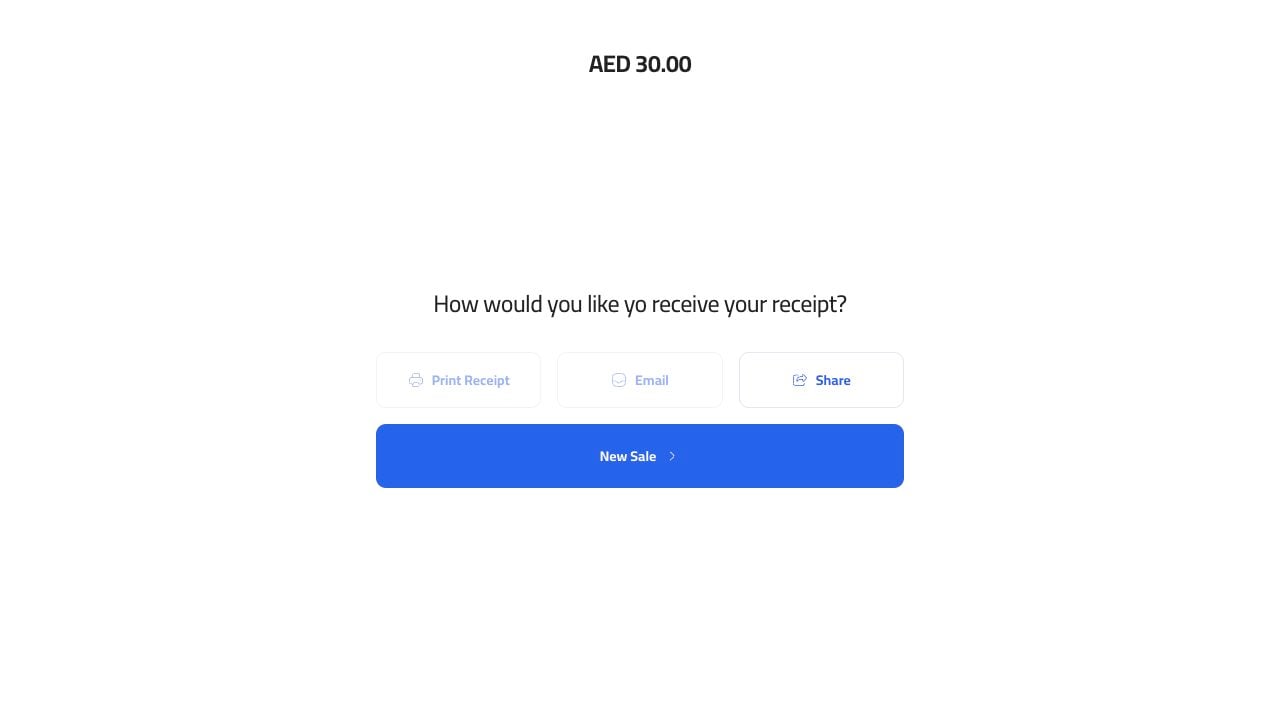
Une fois le dernier paiement enregistré, la commande est clôturée et l'écran de réception apparaît.
## Fermer la commande
Une fois le dernier paiement enregistré, la commande est clôturée et l'écran de réception apparaît.