> ## Documentation Index
> Fetch the complete documentation index at: https://docs.plato.ae/llms.txt
> Use this file to discover all available pages before exploring further.
# Drive
> Store, organize, preview, and reuse files across Plato apps.
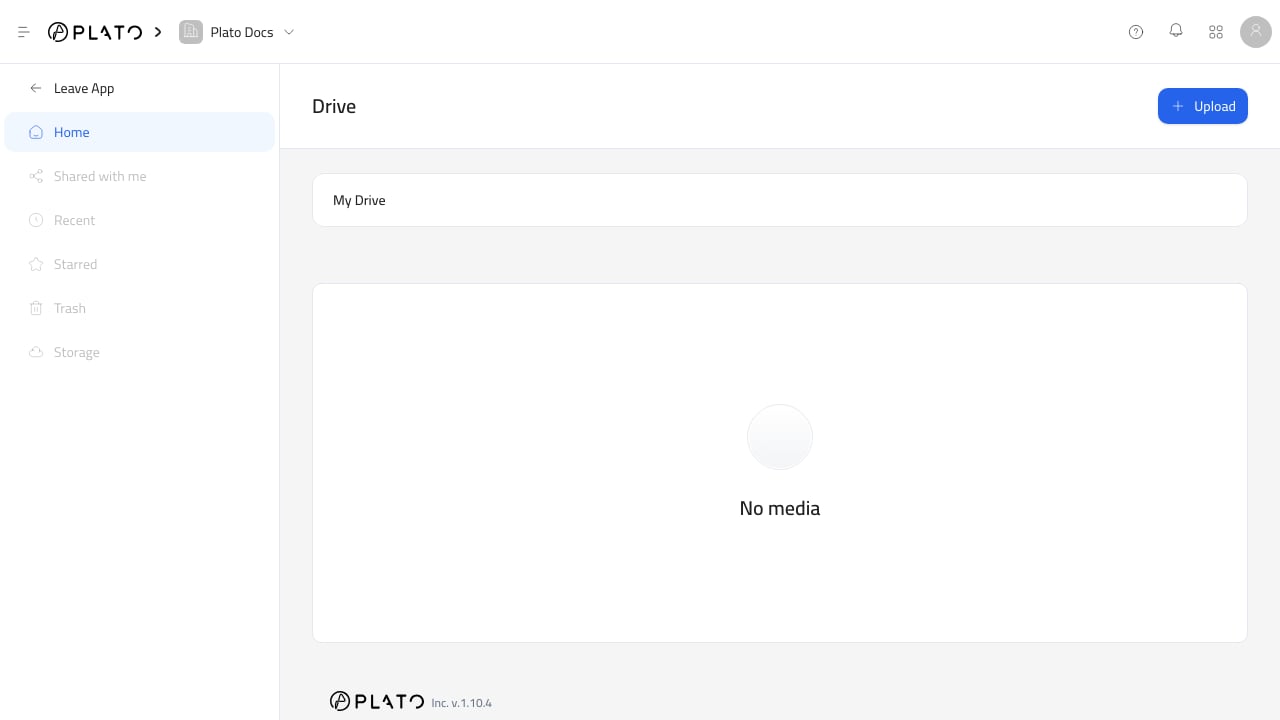 Drive is the shared file library for a Plato workspace. Use it to upload media and documents, organize them into folders, and choose files from other apps when you need an image, video, PDF, attachment, or icon.
Files uploaded to Drive can be reused across Plato. For example, the same image can appear in a Bio Link, a menu product, a Docs template, a CMS entry, or a message attachment.
## What You Can Do
With Drive, you can:
* Upload images, PDFs, videos, audio, documents, spreadsheets, presentations, text files, zip files, and other file types.
* Create folders and subfolders.
* Browse folders from the Drive app or from a Drive picker.
* Preview supported files.
* Download files.
* Copy an asset URL.
* Delete files that are no longer needed.
* Choose existing Drive files from supported fields in other Plato apps.
## Start Here
Browse Drive, create folders, and keep reusable assets organized.
Upload images, videos, PDFs, documents, and other supported file types.
Preview supported files, download assets, copy URLs, or delete unused files.
Select Drive files from forms, editors, menus, messages, and other apps.
Understand workspace storage limits and plan-based behavior.
Fix common upload, preview, permission, and deletion problems.
## When To Use Drive
Use Drive when an asset needs to be reused or selected from more than one place.
For one-off files, upload directly from the field you are editing. The upload still becomes a Drive file, so the team can find it later when needed.
Drive is the shared file library for a Plato workspace. Use it to upload media and documents, organize them into folders, and choose files from other apps when you need an image, video, PDF, attachment, or icon.
Files uploaded to Drive can be reused across Plato. For example, the same image can appear in a Bio Link, a menu product, a Docs template, a CMS entry, or a message attachment.
## What You Can Do
With Drive, you can:
* Upload images, PDFs, videos, audio, documents, spreadsheets, presentations, text files, zip files, and other file types.
* Create folders and subfolders.
* Browse folders from the Drive app or from a Drive picker.
* Preview supported files.
* Download files.
* Copy an asset URL.
* Delete files that are no longer needed.
* Choose existing Drive files from supported fields in other Plato apps.
## Start Here
Browse Drive, create folders, and keep reusable assets organized.
Upload images, videos, PDFs, documents, and other supported file types.
Preview supported files, download assets, copy URLs, or delete unused files.
Select Drive files from forms, editors, menus, messages, and other apps.
Understand workspace storage limits and plan-based behavior.
Fix common upload, preview, permission, and deletion problems.
## When To Use Drive
Use Drive when an asset needs to be reused or selected from more than one place.
For one-off files, upload directly from the field you are editing. The upload still becomes a Drive file, so the team can find it later when needed.