> ## Documentation Index
> Fetch the complete documentation index at: https://docs.plato.ae/llms.txt
> Use this file to discover all available pages before exploring further.
# Roles
> Create roles and decide which Console pages, apps, and actions teammates can use.
Roles define what each teammate can see and do inside Plato. They help you give people enough access to do their work without giving everyone full control of the workspace.
 ## When To Create A Role
Create a role when a group of people needs the same access. For example:
* A manager who needs to review daily operations.
* A staff member who should only use one app.
* A finance teammate who needs billing or reports.
* A connected tool that should only use API access.
## Create A Role
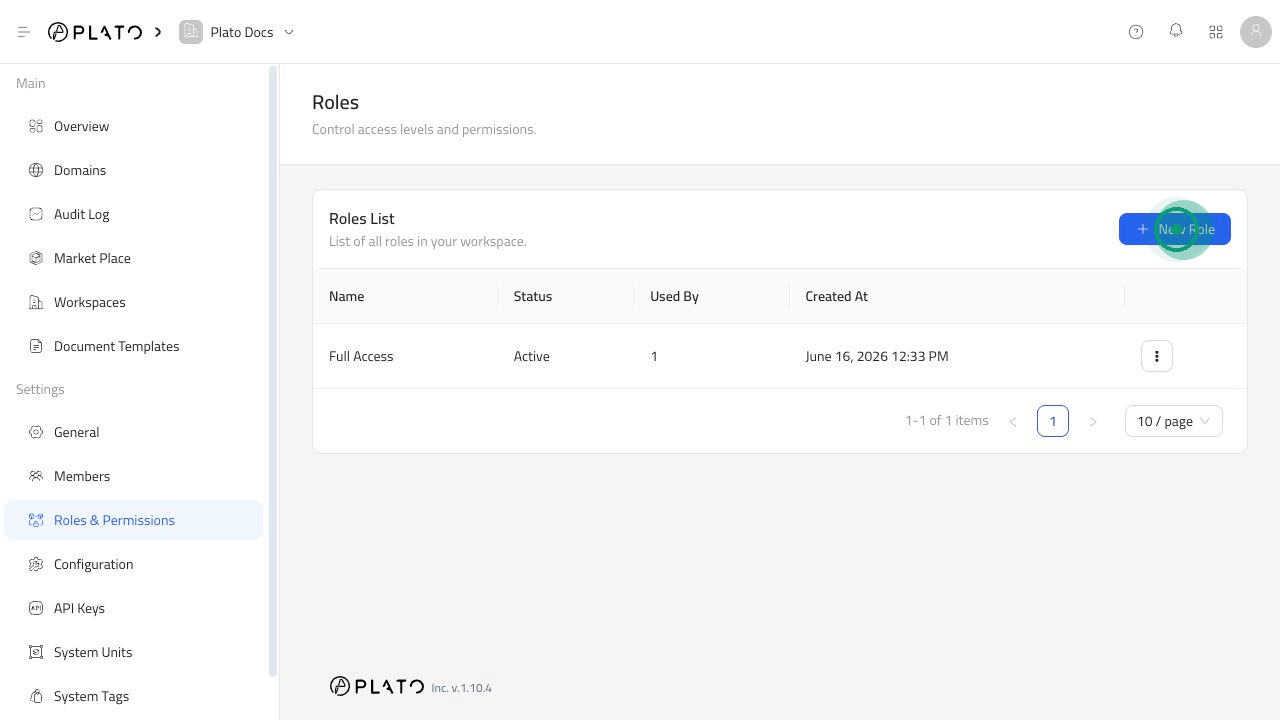
1. Open `Roles & Permissions`.
2. Click `New Role`.
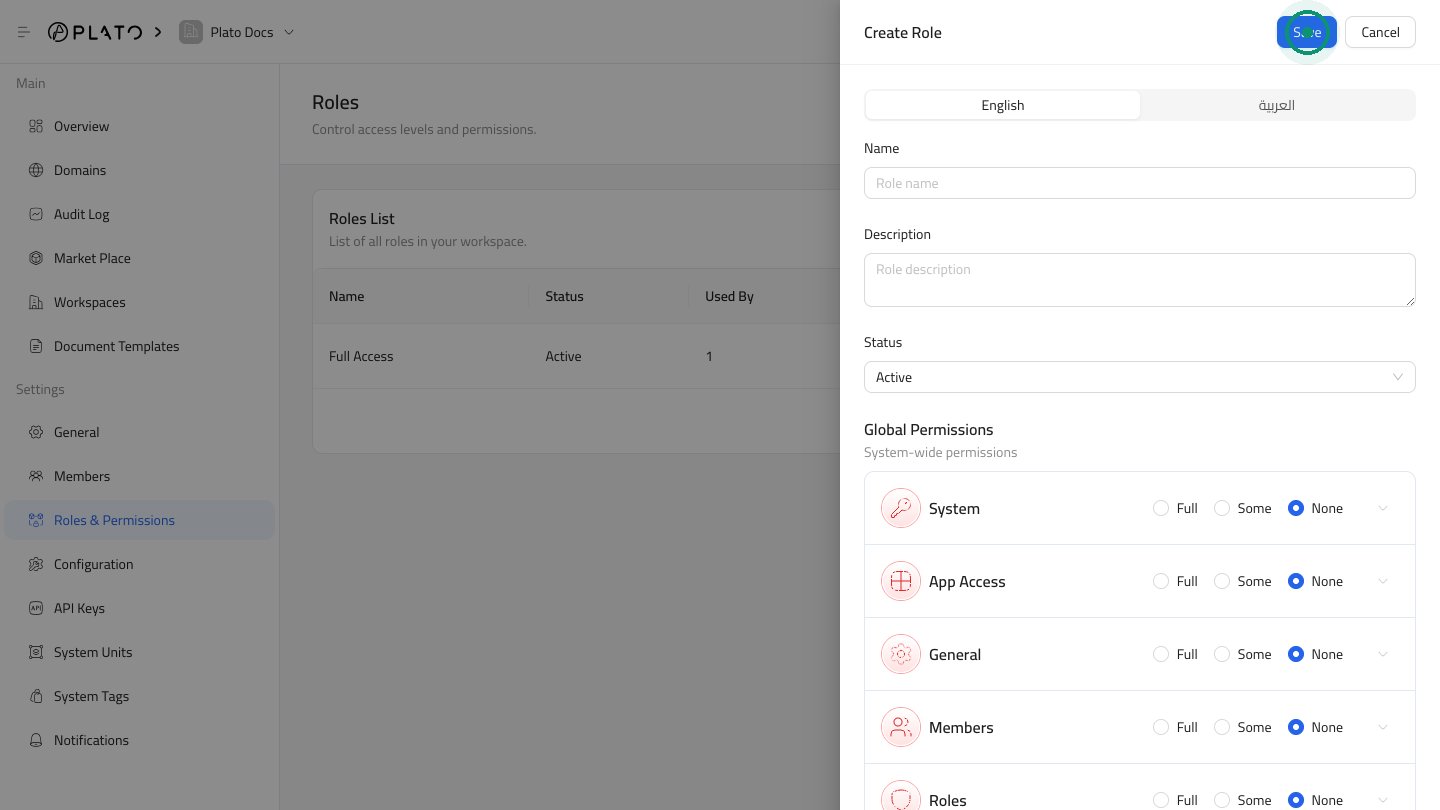
3. Enter the role name.
4. Add a description.
5. Choose a status.
6. Choose what the role can access.
7. Click `Save`.
## When To Create A Role
Create a role when a group of people needs the same access. For example:
* A manager who needs to review daily operations.
* A staff member who should only use one app.
* A finance teammate who needs billing or reports.
* A connected tool that should only use API access.
## Create A Role
1. Open `Roles & Permissions`.
2. Click `New Role`.
3. Enter the role name.
4. Add a description.
5. Choose a status.
6. Choose what the role can access.
7. Click `Save`.
 ## Choose Access
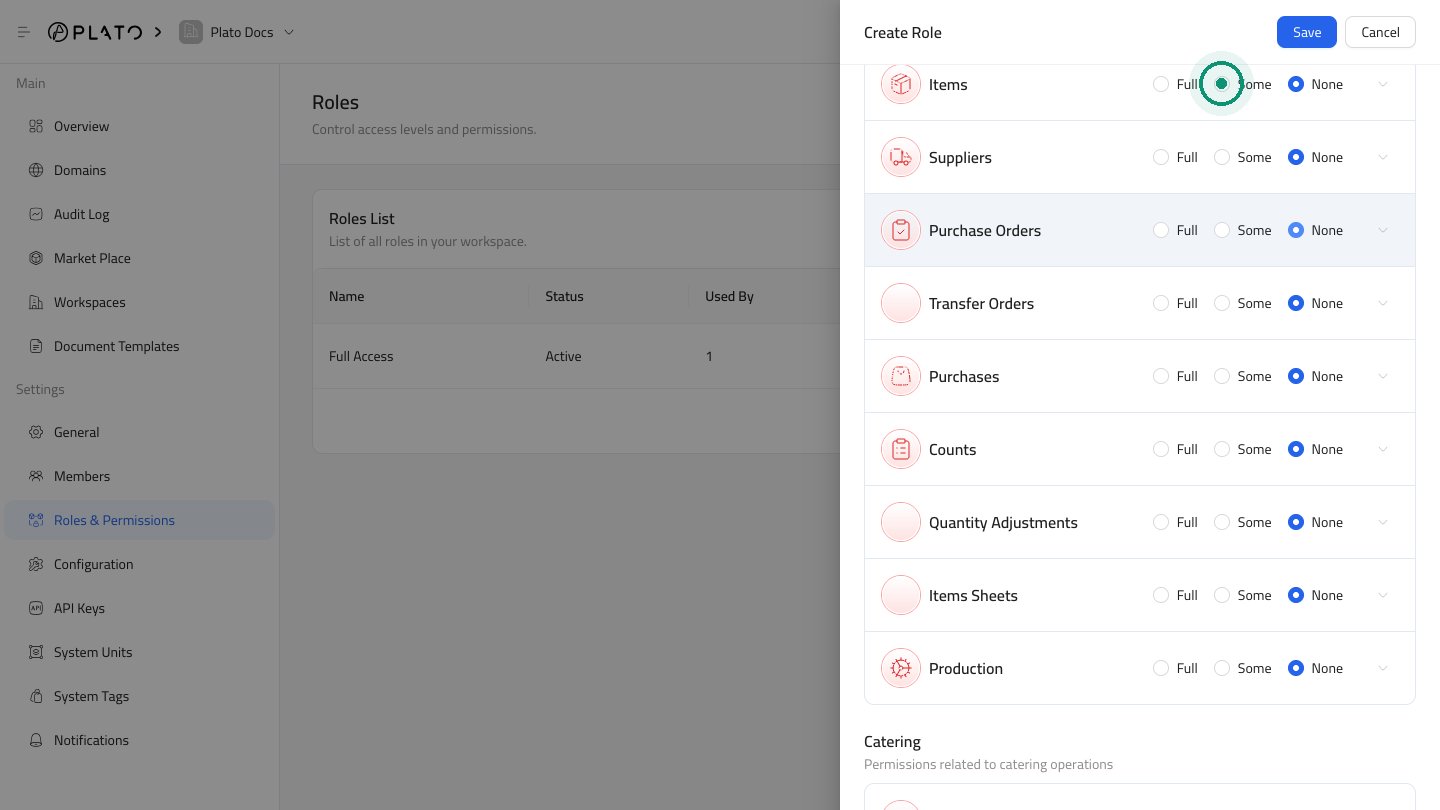
Each section gives you three choices:
* `Full` allows everything in that section.
* `Some` lets you choose only specific actions.
* `None` blocks access to that section.
Use `Some` when a teammate only needs part of a section. For example, a staff member might need to read orders but not change workspace settings.
## Choose Access
Each section gives you three choices:
* `Full` allows everything in that section.
* `Some` lets you choose only specific actions.
* `None` blocks access to that section.
Use `Some` when a teammate only needs part of a section. For example, a staff member might need to read orders but not change workspace settings.
 ## Common Role Examples
Workspace owner: full access to apps, members, roles, configuration, domains, and API keys.
Manager: access to the apps and daily actions they manage, with limited access to sensitive settings.
Staff: access only to the app and actions they need for their work.
Connected tool: access only to the apps and actions the tool needs.
## Keep Roles Clean
Review roles when someone changes jobs, leaves the business, or no longer needs the same access.
Avoid giving full access unless the person truly needs to manage the workspace.
## Common Role Examples
Workspace owner: full access to apps, members, roles, configuration, domains, and API keys.
Manager: access to the apps and daily actions they manage, with limited access to sensitive settings.
Staff: access only to the app and actions they need for their work.
Connected tool: access only to the apps and actions the tool needs.
## Keep Roles Clean
Review roles when someone changes jobs, leaves the business, or no longer needs the same access.
Avoid giving full access unless the person truly needs to manage the workspace.