> ## Documentation Index
> Fetch the complete documentation index at: https://docs.plato.ae/llms.txt
> Use this file to discover all available pages before exploring further.
# Apps
> Open a Plato app from the Console dashboard and understand what changes after entering it.
Use the root Overview when you want to move from workspace settings into a specific Plato app.
## Open An App
1. Open the Console at `app.plato.ae`.
2. Confirm the correct workspace in the top-left workspace selector.
3. Go to `Overview`.
4. Find the app card you want to use.
5. Click `Open App`.
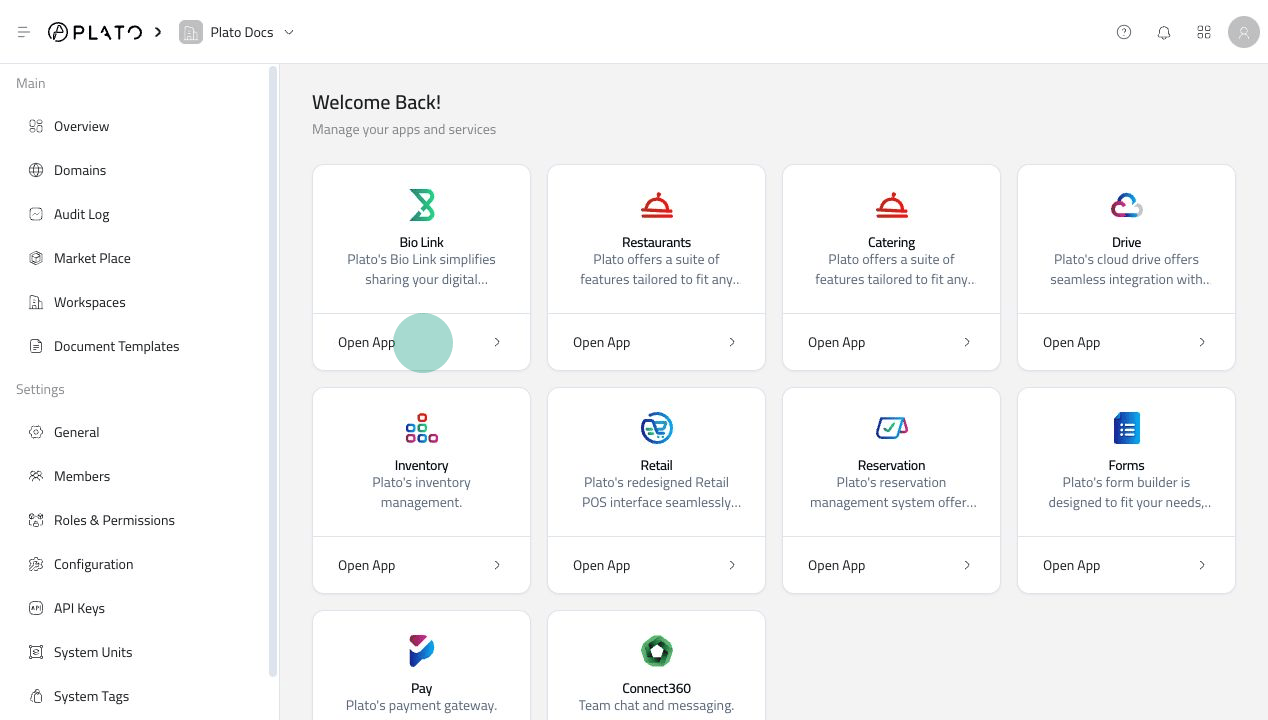 After opening the app, the sidebar switches to that app's own pages.
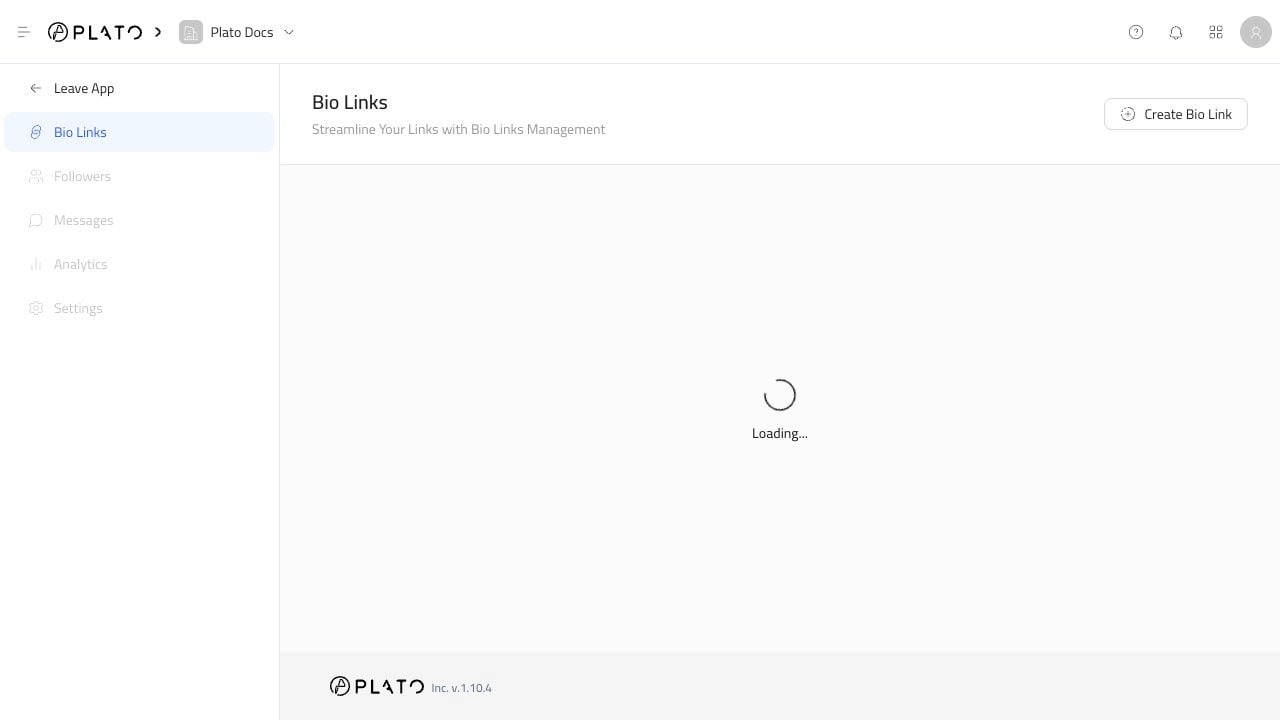 ## Example: Opening Bio Link
When you open Bio Link, the Console changes from workspace settings to Bio Link pages such as Bio Links, Followers, Messages, Analytics, and Settings.
## If The App Card Is Missing
Try this:
1. Confirm you are in the correct workspace.
2. Refresh the page.
3. Ask the workspace owner to confirm the app is included in the workspace plan.
4. Ask the workspace owner to confirm your role can open that app.
For app-specific workflows such as Bio Link buttons, links, theme, and domains, use the dedicated app documentation.
## Example: Opening Bio Link
When you open Bio Link, the Console changes from workspace settings to Bio Link pages such as Bio Links, Followers, Messages, Analytics, and Settings.
## If The App Card Is Missing
Try this:
1. Confirm you are in the correct workspace.
2. Refresh the page.
3. Ask the workspace owner to confirm the app is included in the workspace plan.
4. Ask the workspace owner to confirm your role can open that app.
For app-specific workflows such as Bio Link buttons, links, theme, and domains, use the dedicated app documentation.