> ## Documentation Index
> Fetch the complete documentation index at: https://docs.plato.ae/llms.txt
> Use this file to discover all available pages before exploring further.
# Account
> Update your personal Plato profile image, display name, username, and phone number.
Account Settings control your user profile, not the whole workspace.
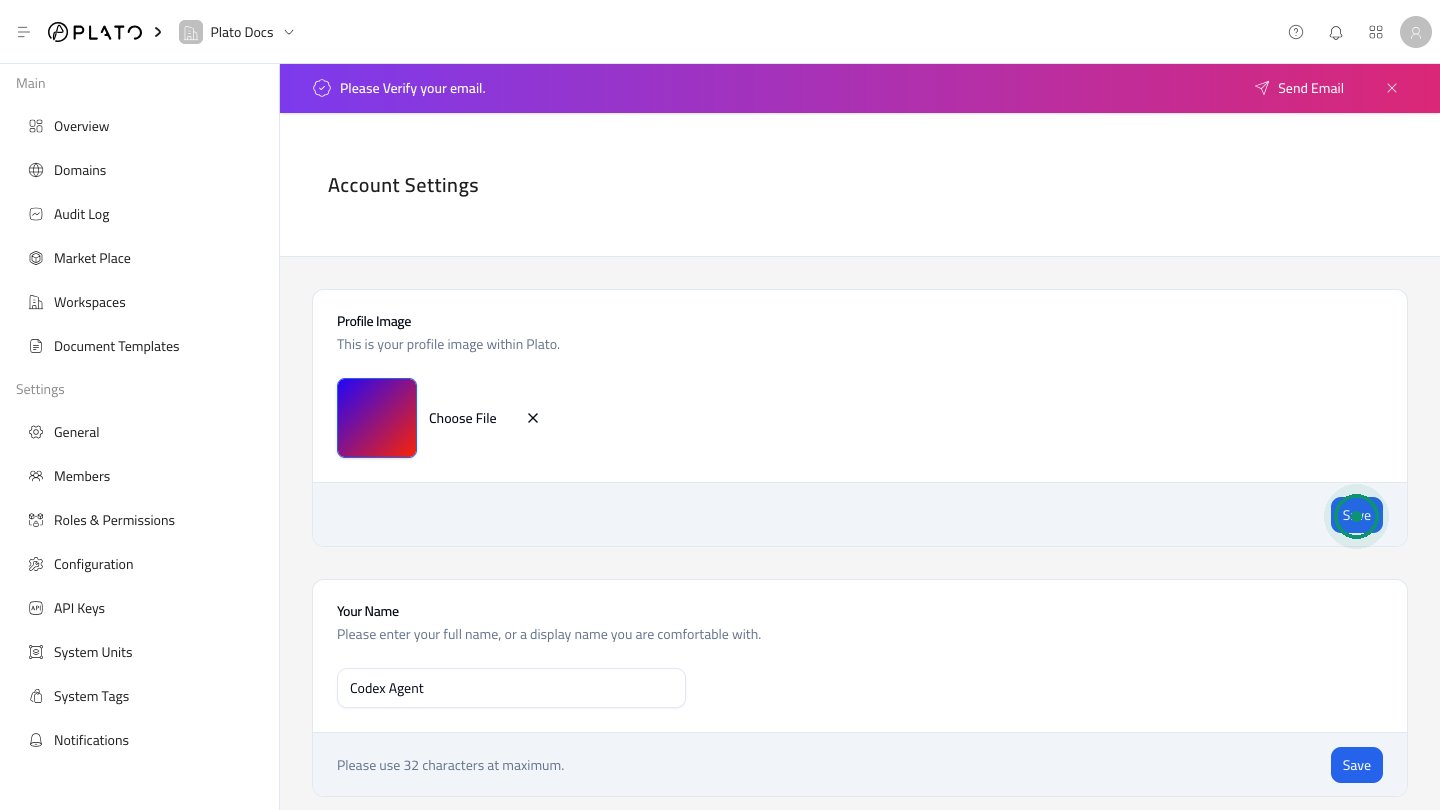 ## Profile Image
Use `Profile Image` to upload or change the image shown on your Plato account.
1. Open `Account Settings`.
2. Update the image.
3. Click `Save` in the Profile Image section.
## Your Name
Your name appears in member lists and activity areas. Use a clear name your team can recognize.
Click the `Save` button in the Your Name section after editing.
## Your Username
The username is used in your Plato account URL. The Console keeps it formatted correctly while you type.
Changing the username can redirect the current URL to the new namespace.
## Profile Image
Use `Profile Image` to upload or change the image shown on your Plato account.
1. Open `Account Settings`.
2. Update the image.
3. Click `Save` in the Profile Image section.
## Your Name
Your name appears in member lists and activity areas. Use a clear name your team can recognize.
Click the `Save` button in the Your Name section after editing.
## Your Username
The username is used in your Plato account URL. The Console keeps it formatted correctly while you type.
Changing the username can redirect the current URL to the new namespace.
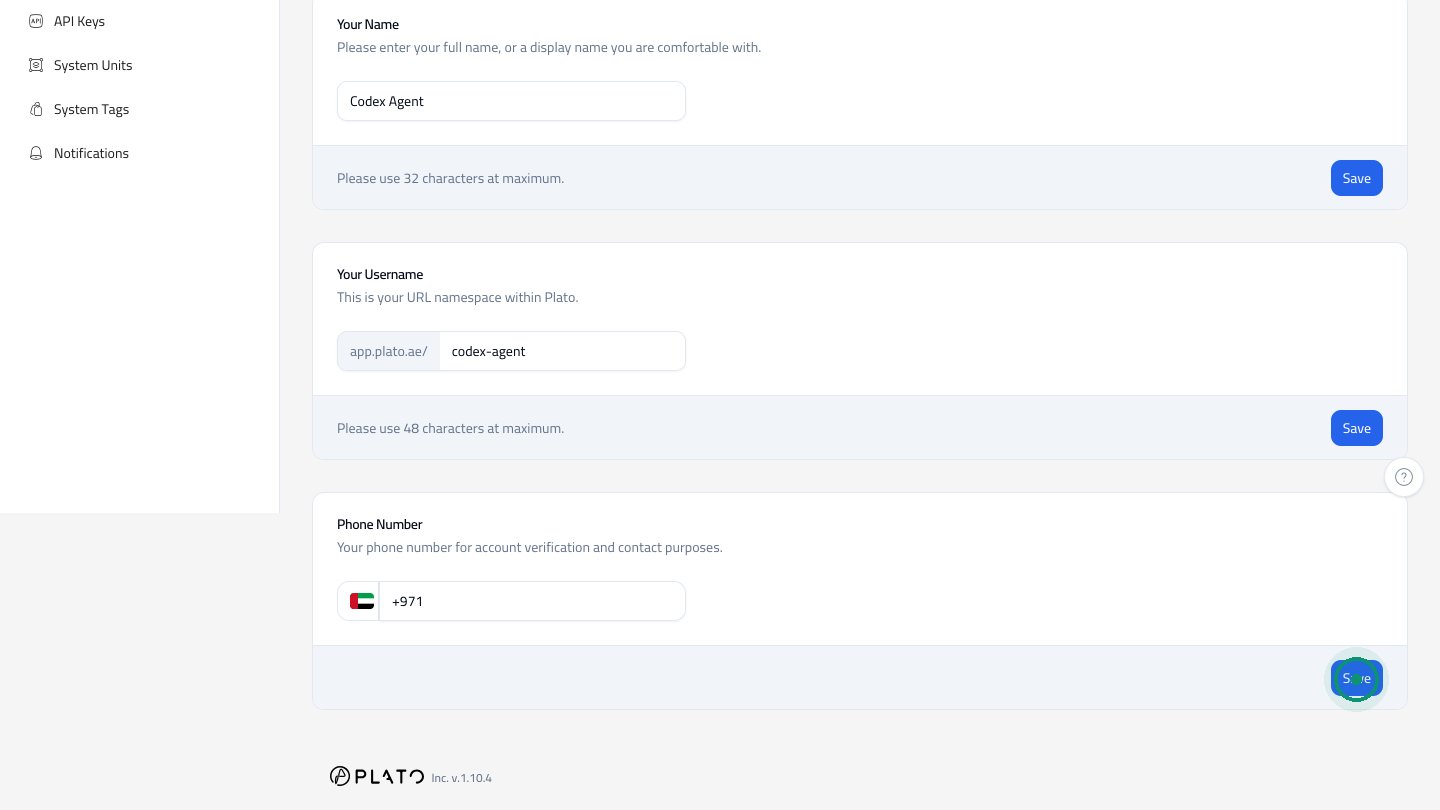 ## Phone Number
Use the phone section for account verification and contact purposes.
Each account setting section has its own `Save` button. Save the section you changed before leaving the page.
## Phone Number
Use the phone section for account verification and contact purposes.
Each account setting section has its own `Save` button. Save the section you changed before leaving the page.