> ## Documentation Index
> Fetch the complete documentation index at: https://docs.plato.ae/llms.txt
> Use this file to discover all available pages before exploring further.
# Workflows
> Build Connect360 automation with triggers, logic, waits, message actions, and execution history.
Workflows automate message and notification flows.
Use them for follow-ups, order updates, campaign paths, reminders, customer routing, and team alerts.
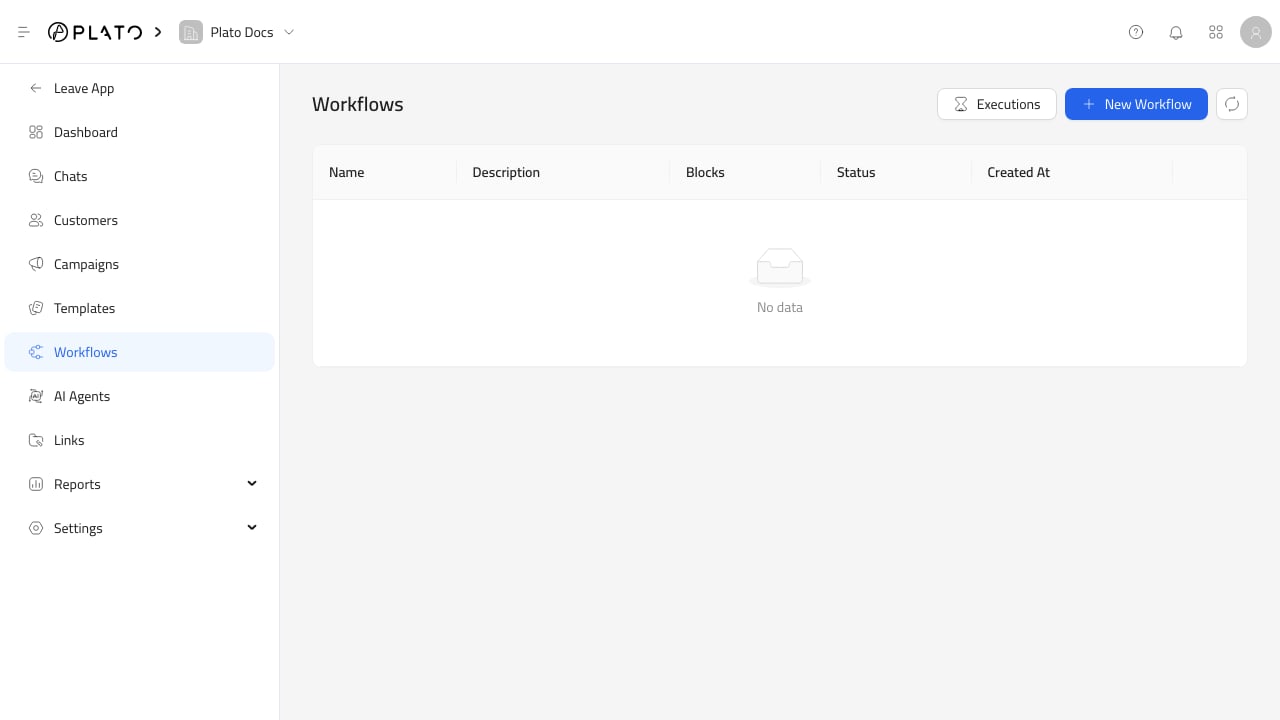 ## Create A Workflow
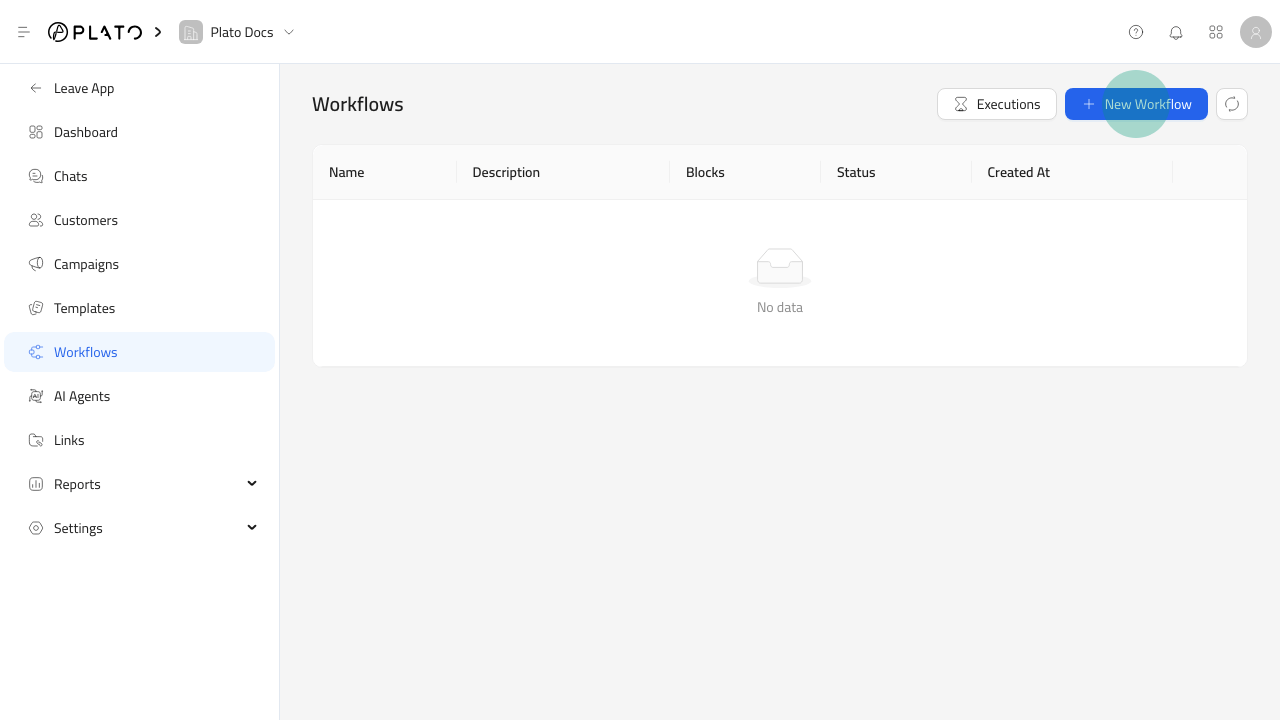
 For the full creation flow, see [Create A Workflow](/connect360/workflows/create-workflow).
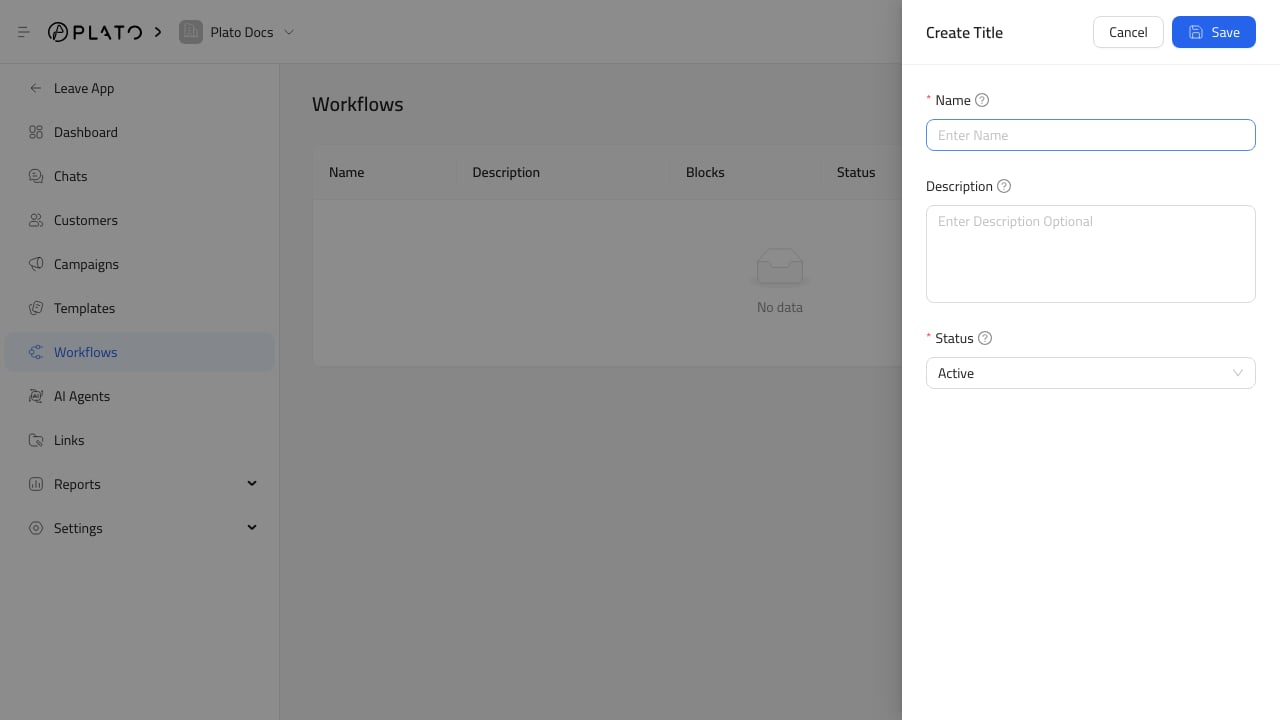
Click `New Workflow`, then add:
* Name.
* Optional description.
* Status: active or inactive.
After saving, open the workflow row to use the visual builder.
## Use The Builder
The workflow builder uses blocks connected on a canvas.
For builder habits and block types, see [Use The Workflow Builder](/connect360/workflows/builder).
Available block groups include:
* `Trigger` blocks, such as manual run and app event.
* `Logic` blocks, such as if, switch, and wait.
* `Action` blocks, such as send message, notify workspace members, and stop.
* `Visual` blocks, such as note.
Double-click a block to edit its settings. Save the canvas after adding or changing blocks.
## Common Triggers
Connect360 workflows can start manually or from app events.
Current app event options include:
* New order created.
* Order updated.
* New WhatsApp message.
Campaigns can also start a workflow for each selected recipient.
## Message And Notification Actions
Use `Send Message` when the workflow should send WhatsApp, SMS, or web message content.
Use `Notify Workspace Members` when the workflow should alert assigned members, unassigned members, or all members.
Use `Wait`, `If`, and `Switch` to control timing and routing.
## Review Executions
Click `Executions` from the Workflows page to review workflow runs.
The execution list shows the workflow, trigger, status, start time, and run time. Use it when a campaign or automation did not behave as expected.
For troubleshooting runs, see [Review Workflow Executions](/connect360/workflows/executions).
For the full creation flow, see [Create A Workflow](/connect360/workflows/create-workflow).
Click `New Workflow`, then add:
* Name.
* Optional description.
* Status: active or inactive.
After saving, open the workflow row to use the visual builder.
## Use The Builder
The workflow builder uses blocks connected on a canvas.
For builder habits and block types, see [Use The Workflow Builder](/connect360/workflows/builder).
Available block groups include:
* `Trigger` blocks, such as manual run and app event.
* `Logic` blocks, such as if, switch, and wait.
* `Action` blocks, such as send message, notify workspace members, and stop.
* `Visual` blocks, such as note.
Double-click a block to edit its settings. Save the canvas after adding or changing blocks.
## Common Triggers
Connect360 workflows can start manually or from app events.
Current app event options include:
* New order created.
* Order updated.
* New WhatsApp message.
Campaigns can also start a workflow for each selected recipient.
## Message And Notification Actions
Use `Send Message` when the workflow should send WhatsApp, SMS, or web message content.
Use `Notify Workspace Members` when the workflow should alert assigned members, unassigned members, or all members.
Use `Wait`, `If`, and `Switch` to control timing and routing.
## Review Executions
Click `Executions` from the Workflows page to review workflow runs.
The execution list shows the workflow, trigger, status, start time, and run time. Use it when a campaign or automation did not behave as expected.
For troubleshooting runs, see [Review Workflow Executions](/connect360/workflows/executions).