> ## Documentation Index
> Fetch the complete documentation index at: https://docs.plato.ae/llms.txt
> Use this file to discover all available pages before exploring further.
# Connect A Channel
> Connect a messaging channel for Connect360 chats, templates, campaigns, and workflows.
Channels are the routes Connect360 uses to send and receive messages.
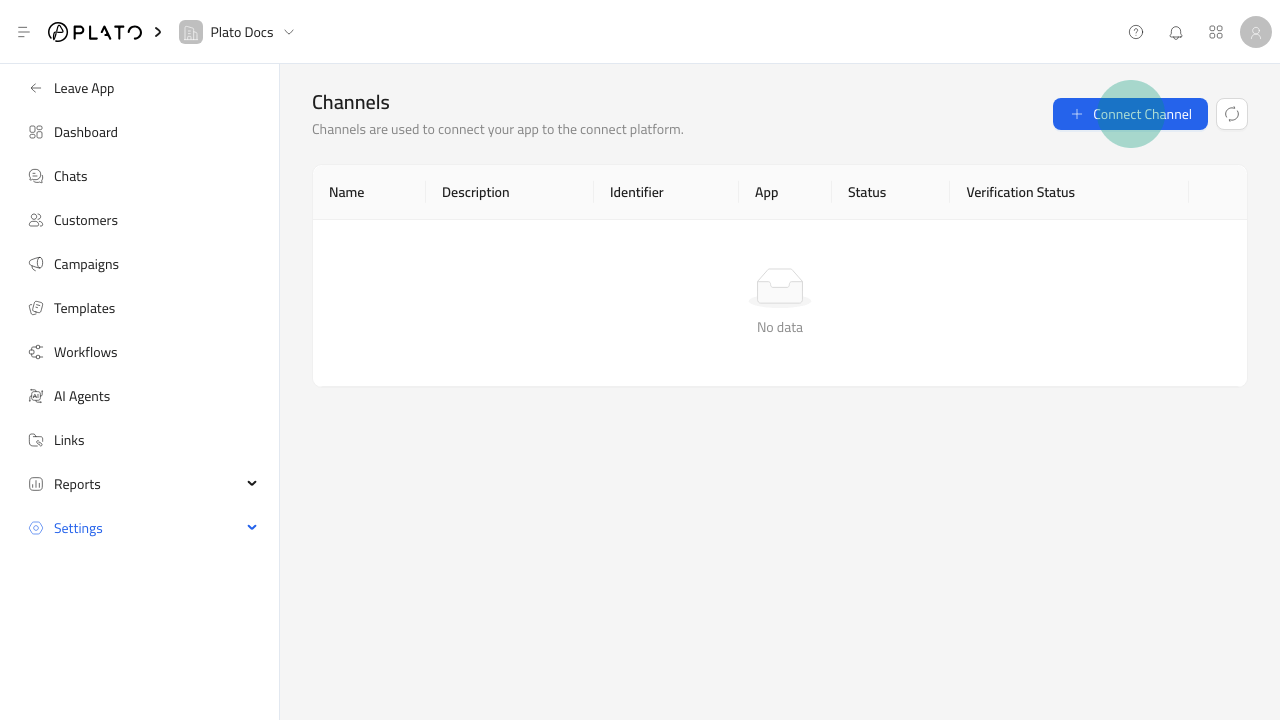 ## Open The Channel Form
1. Open `Connect360`.
2. Go to `Settings` > `Channels`.
3. Click `Connect Channel`.
## Open The Channel Form
1. Open `Connect360`.
2. Go to `Settings` > `Channels`.
3. Click `Connect Channel`.
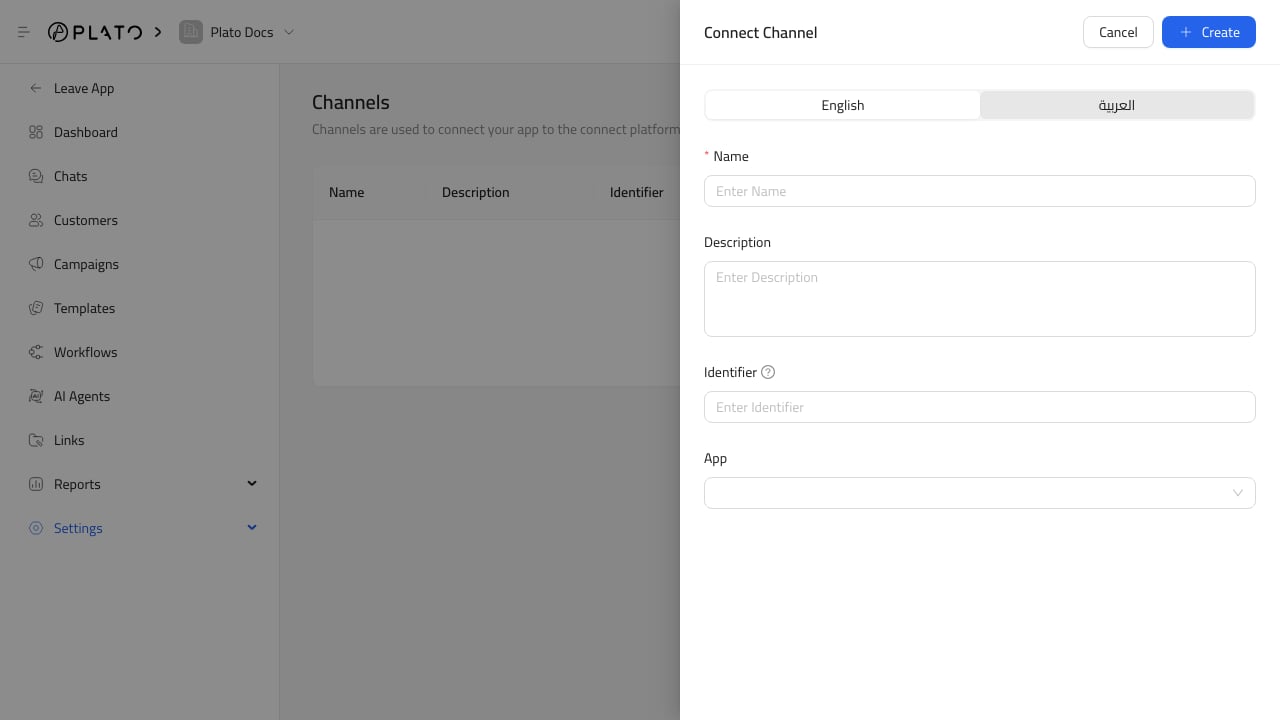 ## Fill Channel Details
Add a clear name, description, identifier, and messaging app.
The identifier is usually the provider-specific sender value, such as a WhatsApp number or SMS sender.
## Before Using The Channel
Confirm:
* The channel is active.
* Verification status is ready.
* The app/provider is correct.
* Webhooks and provider credentials are configured when required.
* A messaging wallet exists when the channel has paid sends.
## Fill Channel Details
Add a clear name, description, identifier, and messaging app.
The identifier is usually the provider-specific sender value, such as a WhatsApp number or SMS sender.
## Before Using The Channel
Confirm:
* The channel is active.
* Verification status is ready.
* The app/provider is correct.
* Webhooks and provider credentials are configured when required.
* A messaging wallet exists when the channel has paid sends.