> ## Documentation Index
> Fetch the complete documentation index at: https://docs.plato.ae/llms.txt
> Use this file to discover all available pages before exploring further.
# Create A Campaign
> Create a Connect360 campaign that sends a template, starts a workflow, or both.
Campaigns are used for outbound messages to selected customers.
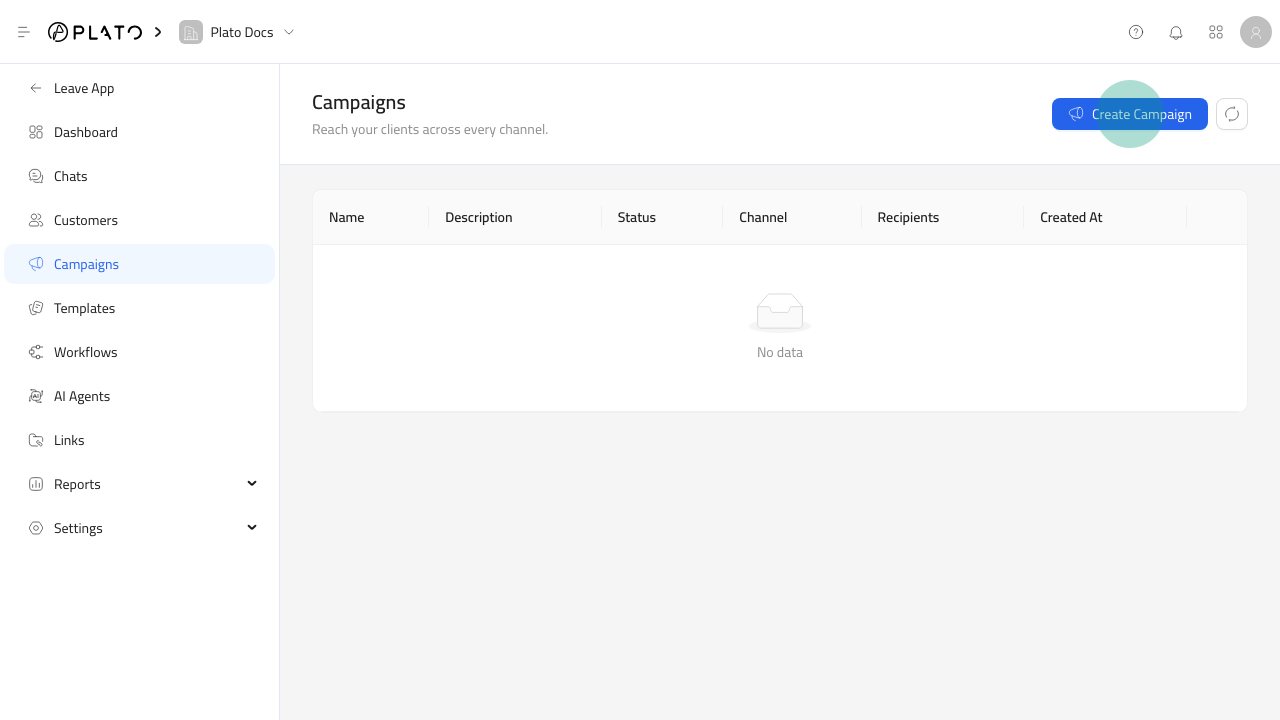 ## Open The Campaign Form
1. Open `Connect360`.
2. Go to `Campaigns`.
3. Click `Create Campaign`.
## Open The Campaign Form
1. Open `Connect360`.
2. Go to `Campaigns`.
3. Click `Create Campaign`.
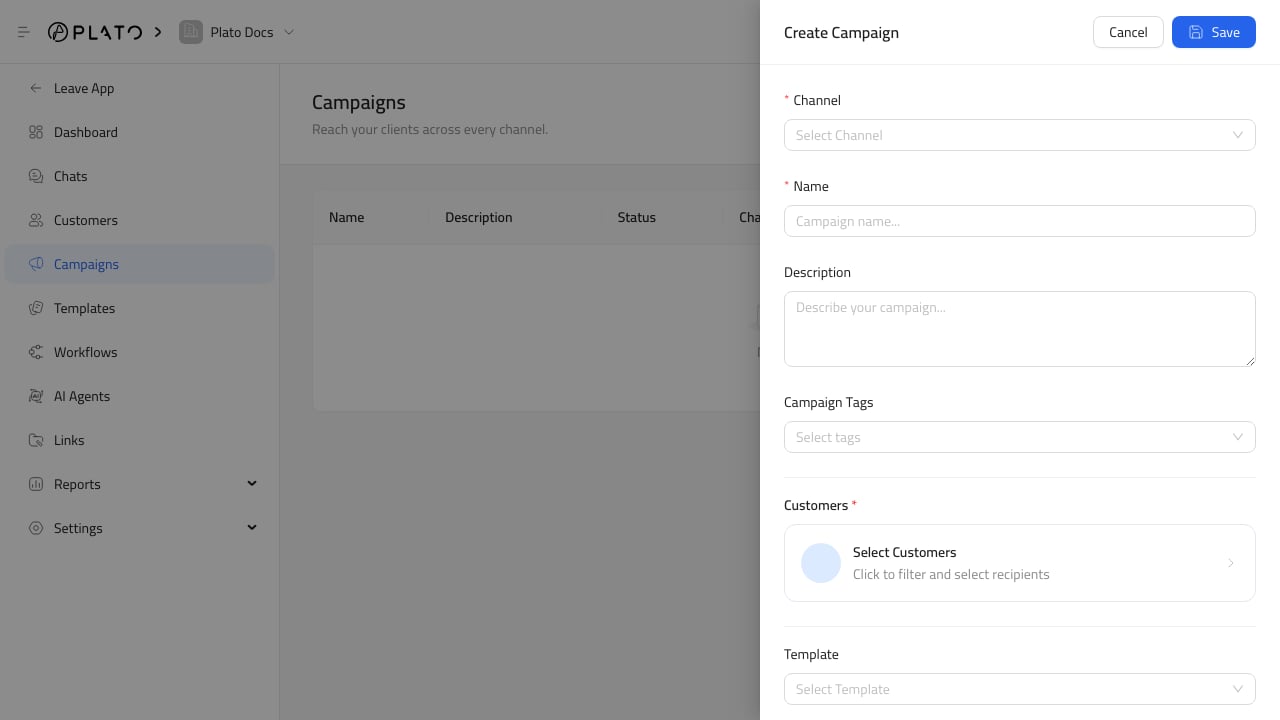 ## Fill Campaign Details
Add a clear campaign name and description. Choose the channel that should send the message.
Use campaign tags when the campaign belongs to a season, audience, or offer group.
## Choose What The Campaign Does
A campaign can send a template, start a workflow, or do both.
## Fill Campaign Details
Add a clear campaign name and description. Choose the channel that should send the message.
Use campaign tags when the campaign belongs to a season, audience, or offer group.
## Choose What The Campaign Does
A campaign can send a template, start a workflow, or do both.
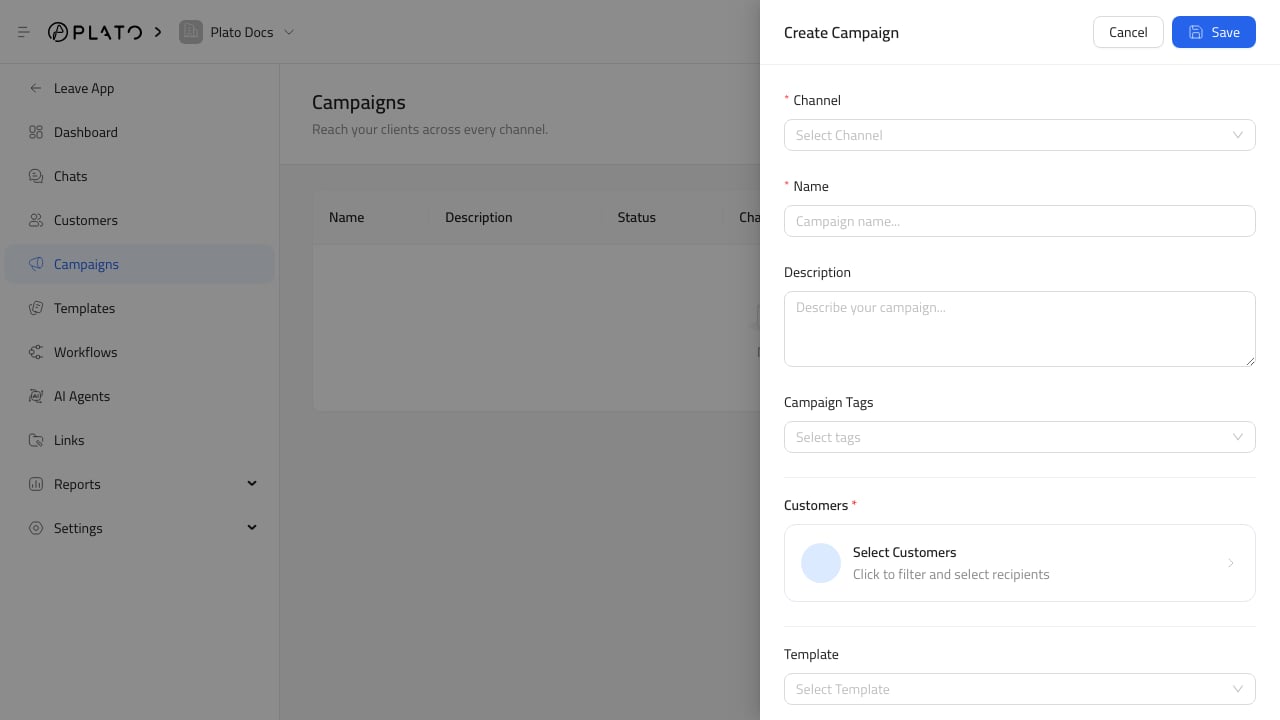 Use a template for a single outbound message. Use a workflow when recipients should enter a multi-step automation.