> ## Documentation Index
> Fetch the complete documentation index at: https://docs.plato.ae/llms.txt
> Use this file to discover all available pages before exploring further.
# Create A Database
> Create a CMS database and choose the settings that affect navigation and integrations.
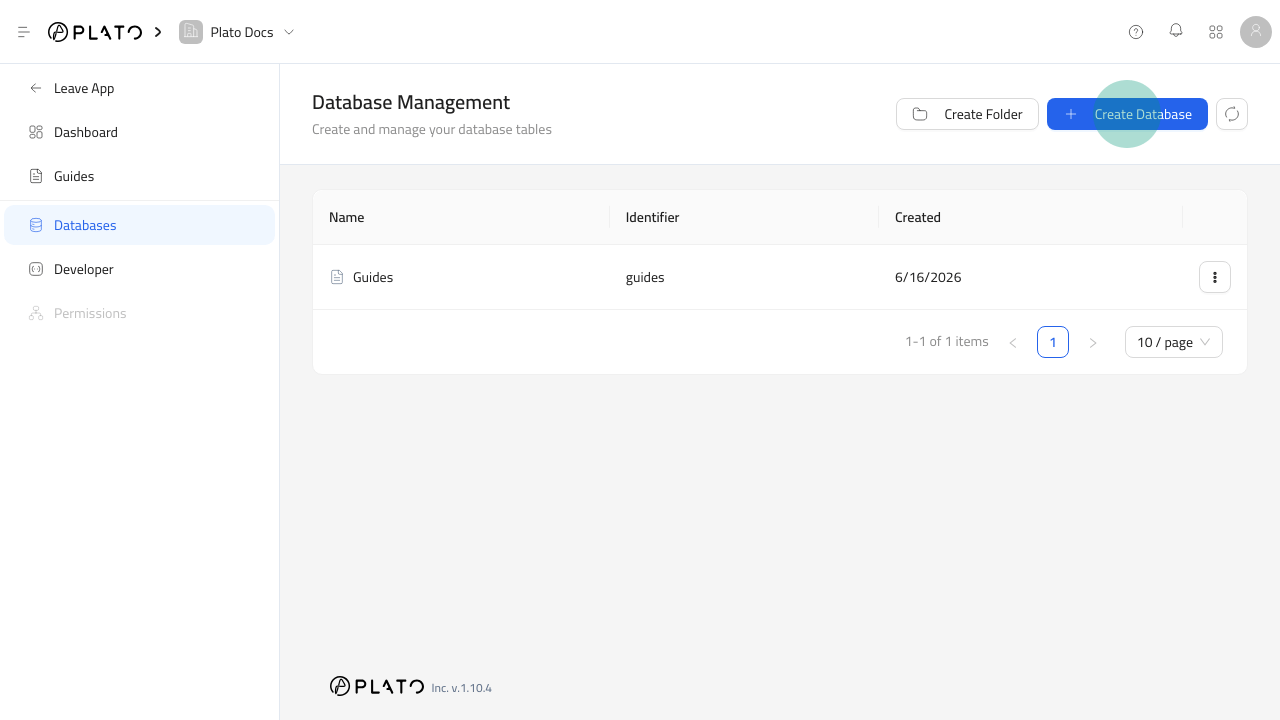
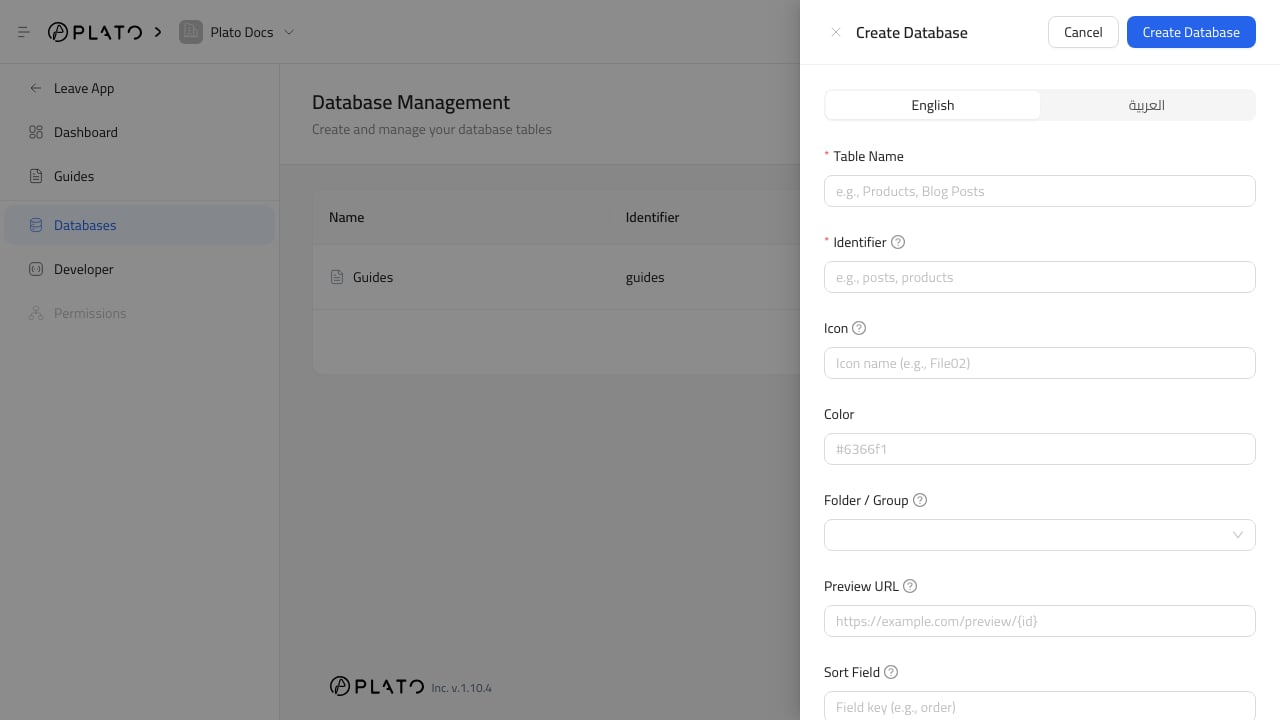 Create a database when the workspace needs a new structured content table.
## Create The Database
1. Open `CMS`.
2. Go to `Databases`.
3. Click `Create Database`.
4. Enter the table name.
5. Enter the identifier.
6. Choose an icon and color if helpful.
7. Choose a folder when the database belongs in a group.
8. Add a preview URL when entries can be previewed on a public page.
9. Choose whether the table is a singleton or hidden.
10. Click `Create Database`.
## Choose A Good Identifier
Use a lowercase, stable identifier that describes the table.
Good examples:
* `locations`
* `blog_posts`
* `home_page_sections`
* `service_categories`
Avoid names that are too broad, such as `data`, `items`, or `content`.
## Use Singleton Carefully
Turn on `Singleton` when the table should only have one entry.
Good singleton examples are homepage settings, global SEO defaults, footer content, or one workspace profile record.
Use a normal database when staff need multiple rows.
## Use Preview URLs
The preview URL can include `{id}` for the entry ID.
Use this when editors need to open a public or staging page for a specific entry after saving it.
Create a database when the workspace needs a new structured content table.
## Create The Database
1. Open `CMS`.
2. Go to `Databases`.
3. Click `Create Database`.
4. Enter the table name.
5. Enter the identifier.
6. Choose an icon and color if helpful.
7. Choose a folder when the database belongs in a group.
8. Add a preview URL when entries can be previewed on a public page.
9. Choose whether the table is a singleton or hidden.
10. Click `Create Database`.
## Choose A Good Identifier
Use a lowercase, stable identifier that describes the table.
Good examples:
* `locations`
* `blog_posts`
* `home_page_sections`
* `service_categories`
Avoid names that are too broad, such as `data`, `items`, or `content`.
## Use Singleton Carefully
Turn on `Singleton` when the table should only have one entry.
Good singleton examples are homepage settings, global SEO defaults, footer content, or one workspace profile record.
Use a normal database when staff need multiple rows.
## Use Preview URLs
The preview URL can include `{id}` for the entry ID.
Use this when editors need to open a public or staging page for a specific entry after saving it.