> ## Documentation Index
> Fetch the complete documentation index at: https://docs.plato.ae/llms.txt
> Use this file to discover all available pages before exploring further.
# CMS
> Build custom content tables, manage entries, organize folders, and generate developer resources in Plato CMS.
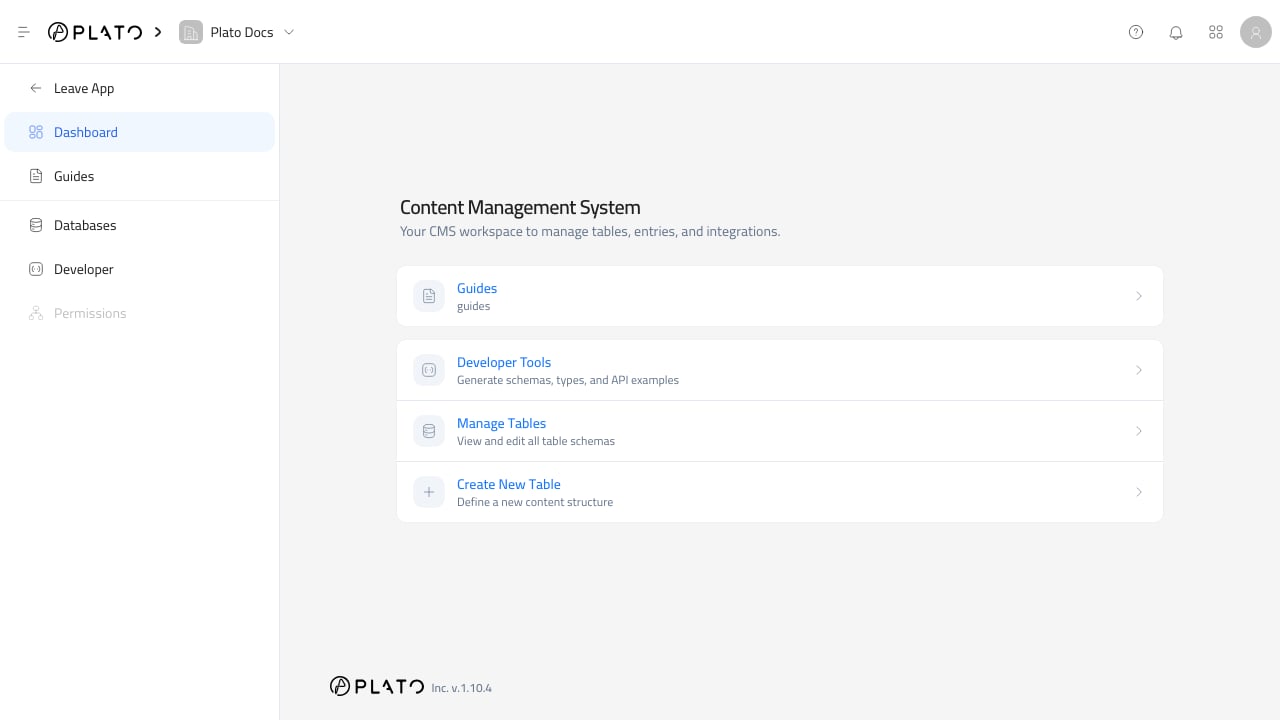 CMS is the Plato app for managing custom structured content inside a workspace.
Use CMS when the workspace needs flexible tables that do not already belong to a dedicated app. Common examples include locations, landing page content, media libraries, guides, service catalogs, custom records, and reusable data that another app or website can read.
## What You Can Do
With CMS, you can:
* Create content tables.
* Group tables into folders.
* Add fields that control the entry form and table columns.
* Create, edit, filter, reorder, inspect, and delete entries.
* Connect entries to other CMS tables or supported system tables.
* Localize field labels and entry values.
* Generate TypeScript API client code and API examples from the current schemas.
## Start Here
Learn the CMS sidebar, dashboard, database list, and main working areas.
Build a new content table and choose the identifier other tools will use.
Add the fields staff will fill in when creating entries.
Add content, edit existing records, and keep entries clean.
Connect one CMS table to another when content belongs together.
Review generated code and API examples for trusted integrations.
## A Good Setup Path
For a new CMS area, work in this order:
1. Create folders for major content areas when the workspace will have many tables.
2. Create the database.
3. Choose a stable identifier.
4. Add fields in the order staff should fill them.
5. Configure field display, layout, relations, and conditions.
6. Add a few sample entries.
7. Open Developer Tools if another app or website needs API access.
## Before You Add Content
Spend a minute on table and field names before entering a lot of data.
The table identifier and field keys are used by integrations and generated code. Keep them short, readable, and stable, such as `locations`, `featured_services`, `title`, `slug`, `image`, and `sort_order`.
CMS is the Plato app for managing custom structured content inside a workspace.
Use CMS when the workspace needs flexible tables that do not already belong to a dedicated app. Common examples include locations, landing page content, media libraries, guides, service catalogs, custom records, and reusable data that another app or website can read.
## What You Can Do
With CMS, you can:
* Create content tables.
* Group tables into folders.
* Add fields that control the entry form and table columns.
* Create, edit, filter, reorder, inspect, and delete entries.
* Connect entries to other CMS tables or supported system tables.
* Localize field labels and entry values.
* Generate TypeScript API client code and API examples from the current schemas.
## Start Here
Learn the CMS sidebar, dashboard, database list, and main working areas.
Build a new content table and choose the identifier other tools will use.
Add the fields staff will fill in when creating entries.
Add content, edit existing records, and keep entries clean.
Connect one CMS table to another when content belongs together.
Review generated code and API examples for trusted integrations.
## A Good Setup Path
For a new CMS area, work in this order:
1. Create folders for major content areas when the workspace will have many tables.
2. Create the database.
3. Choose a stable identifier.
4. Add fields in the order staff should fill them.
5. Configure field display, layout, relations, and conditions.
6. Add a few sample entries.
7. Open Developer Tools if another app or website needs API access.
## Before You Add Content
Spend a minute on table and field names before entering a lot of data.
The table identifier and field keys are used by integrations and generated code. Keep them short, readable, and stable, such as `locations`, `featured_services`, `title`, `slug`, `image`, and `sort_order`.