> ## Documentation Index
> Fetch the complete documentation index at: https://docs.plato.ae/llms.txt
> Use this file to discover all available pages before exploring further.
# Share And QR
> Share a Bio Link, copy its URL, open the public page, and create a QR code.
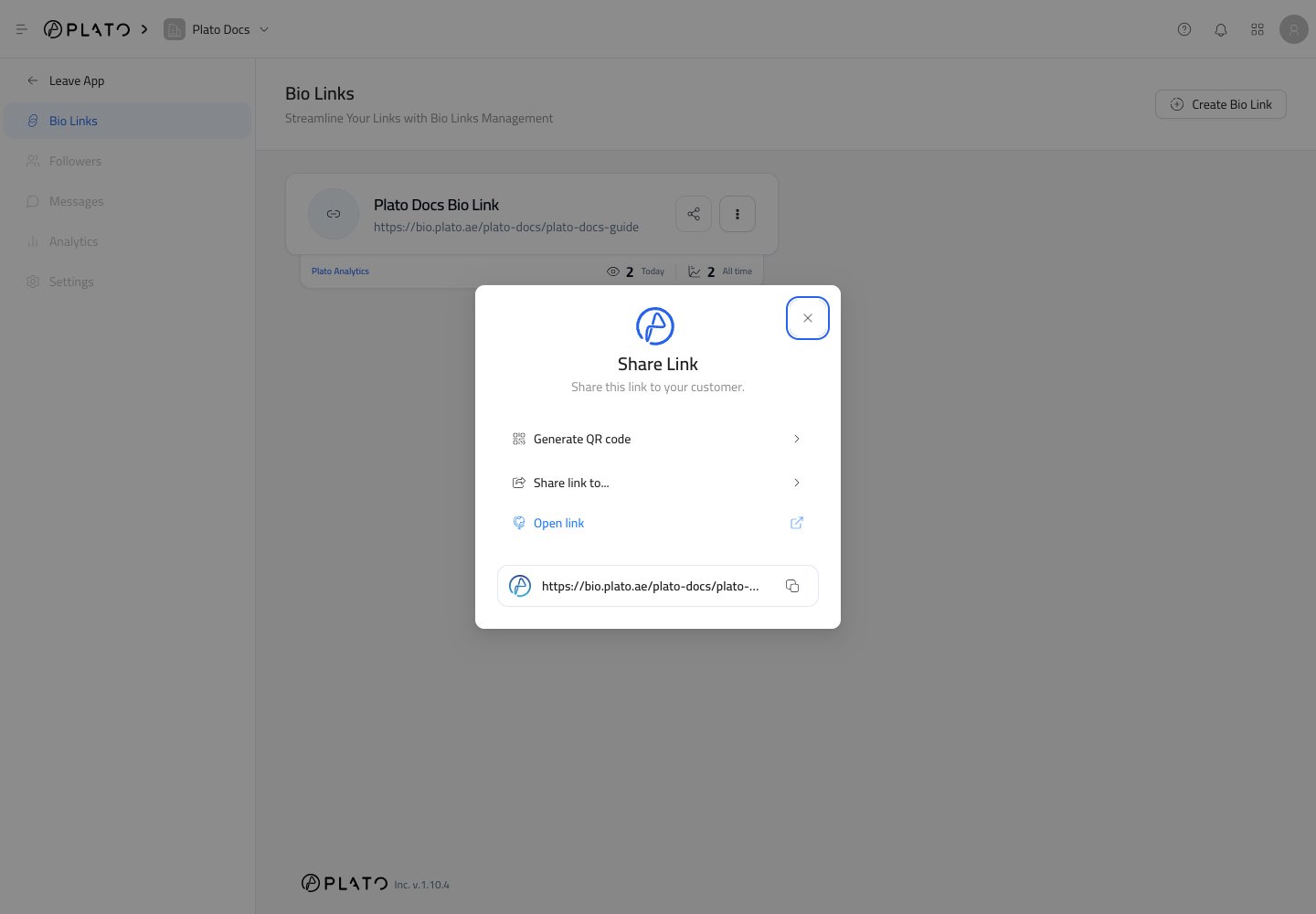
Use the share button on a Bio Link card when you are ready to send the page to customers.
 ## Share The URL
From the share dialog, you can:
* Copy the public URL.
* Open the public page.
* Share through supported social channels.
* Generate a QR code.
Copy the URL when you want to paste it into Instagram, WhatsApp, email, SMS, ads, or printed material.
## Generate A QR Code
Click `Generate QR code` to create a scannable code for the Bio Link.
## Share The URL
From the share dialog, you can:
* Copy the public URL.
* Open the public page.
* Share through supported social channels.
* Generate a QR code.
Copy the URL when you want to paste it into Instagram, WhatsApp, email, SMS, ads, or printed material.
## Generate A QR Code
Click `Generate QR code` to create a scannable code for the Bio Link.
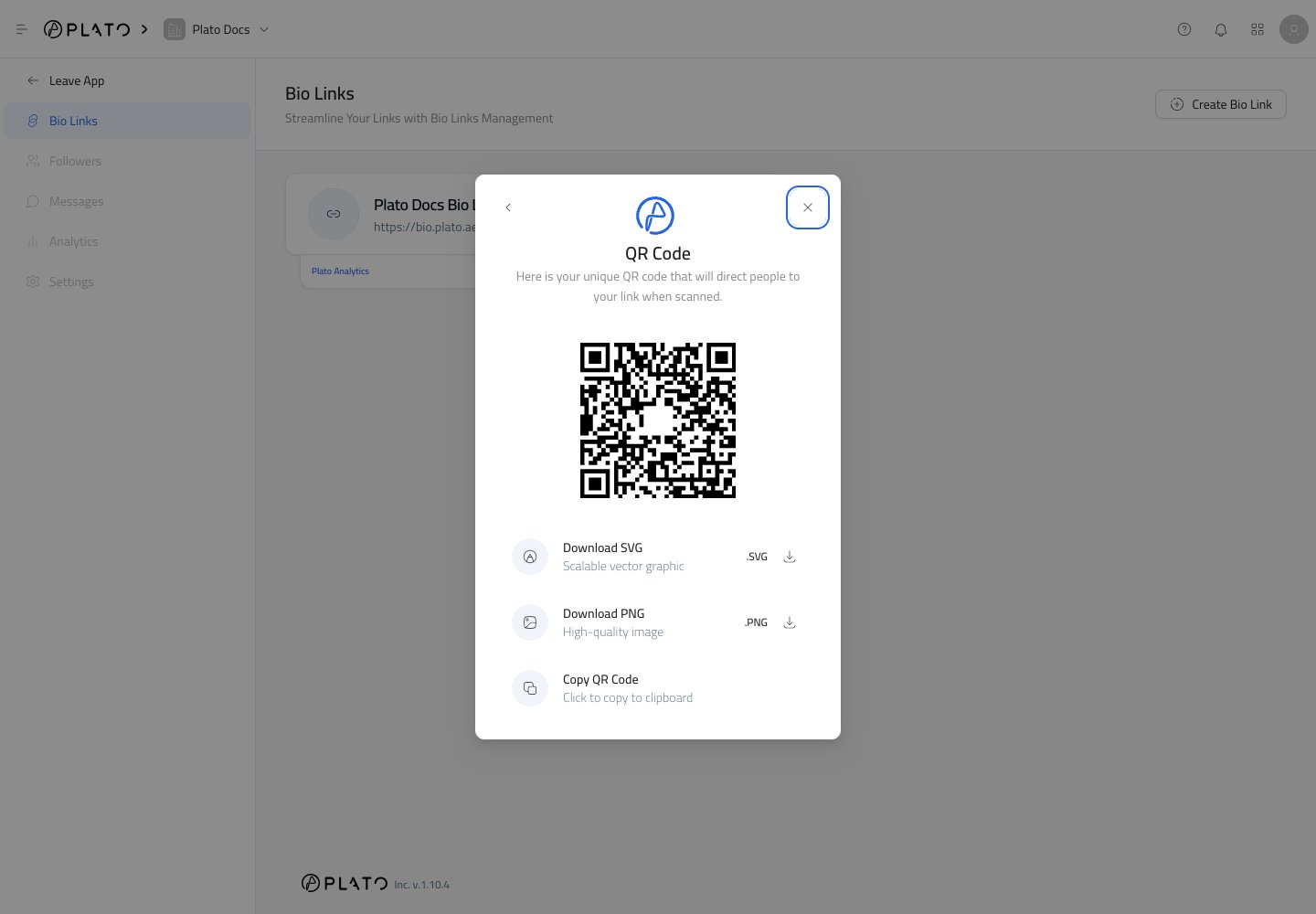 You can download the QR code as SVG or PNG, or copy it for quick use.
Use PNG for quick sharing and simple designs. Use SVG when a designer or printer needs a sharp file for menus, posters, business cards, packaging, or storefront displays.
## Test Before Printing
Before printing or publishing a QR code:
1. Scan it with a phone.
2. Confirm the correct Bio Link opens.
3. Tap the important buttons.
4. Check the page in each language you plan to share.
You can download the QR code as SVG or PNG, or copy it for quick use.
Use PNG for quick sharing and simple designs. Use SVG when a designer or printer needs a sharp file for menus, posters, business cards, packaging, or storefront displays.
## Test Before Printing
Before printing or publishing a QR code:
1. Scan it with a phone.
2. Confirm the correct Bio Link opens.
3. Tap the important buttons.
4. Check the page in each language you plan to share.