> ## Documentation Index
> Fetch the complete documentation index at: https://docs.plato.ae/llms.txt
> Use this file to discover all available pages before exploring further.
# Settings
> Add social icons, update the Bio Link URL, choose a domain, and manage risky actions.
Settings is where you manage social icons, the public URL, and deletion.
## Add Social Icons
Social icons can appear near the top or bottom of the public Bio Link page.
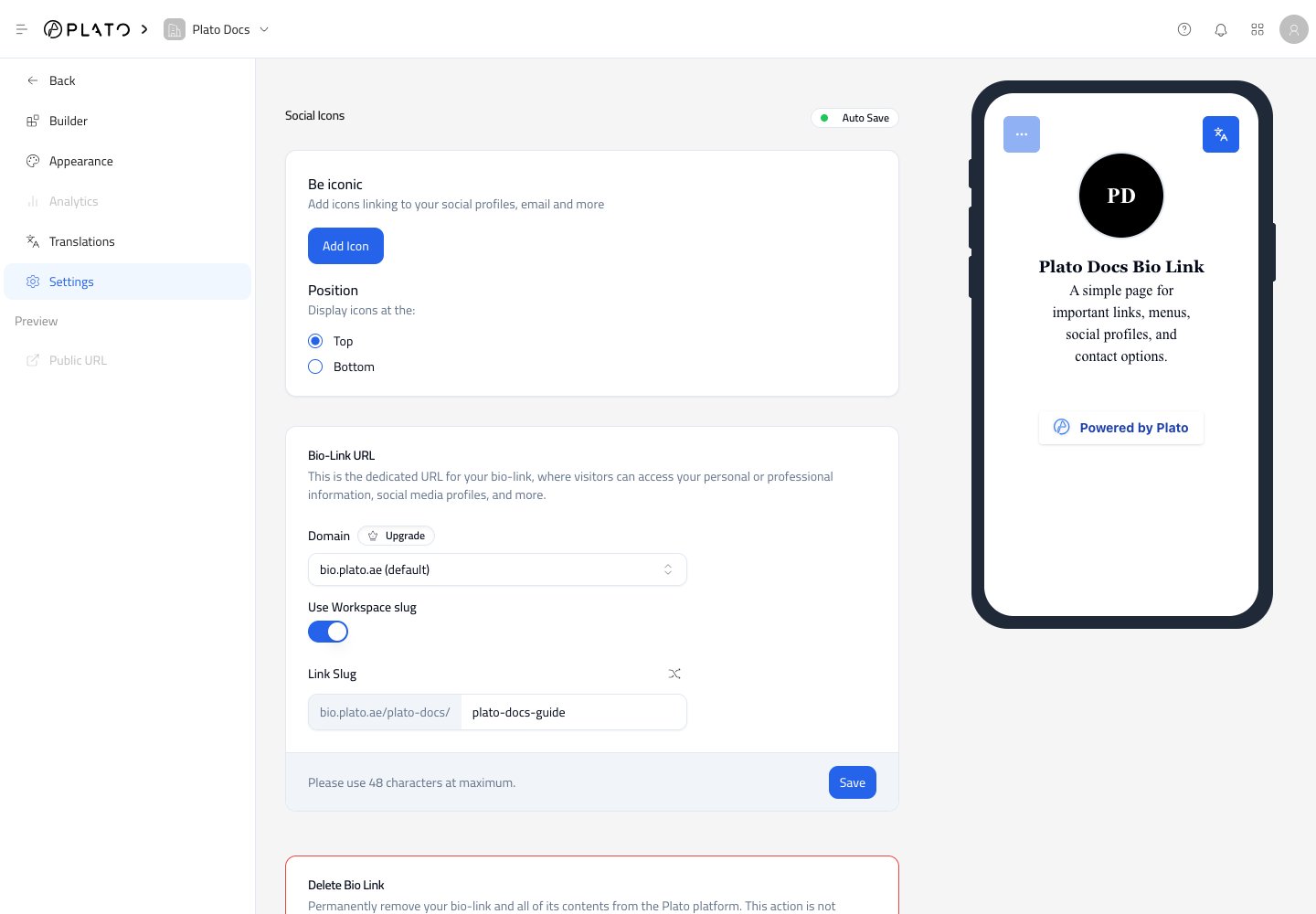 Click `Add Icon` to add a new icon.
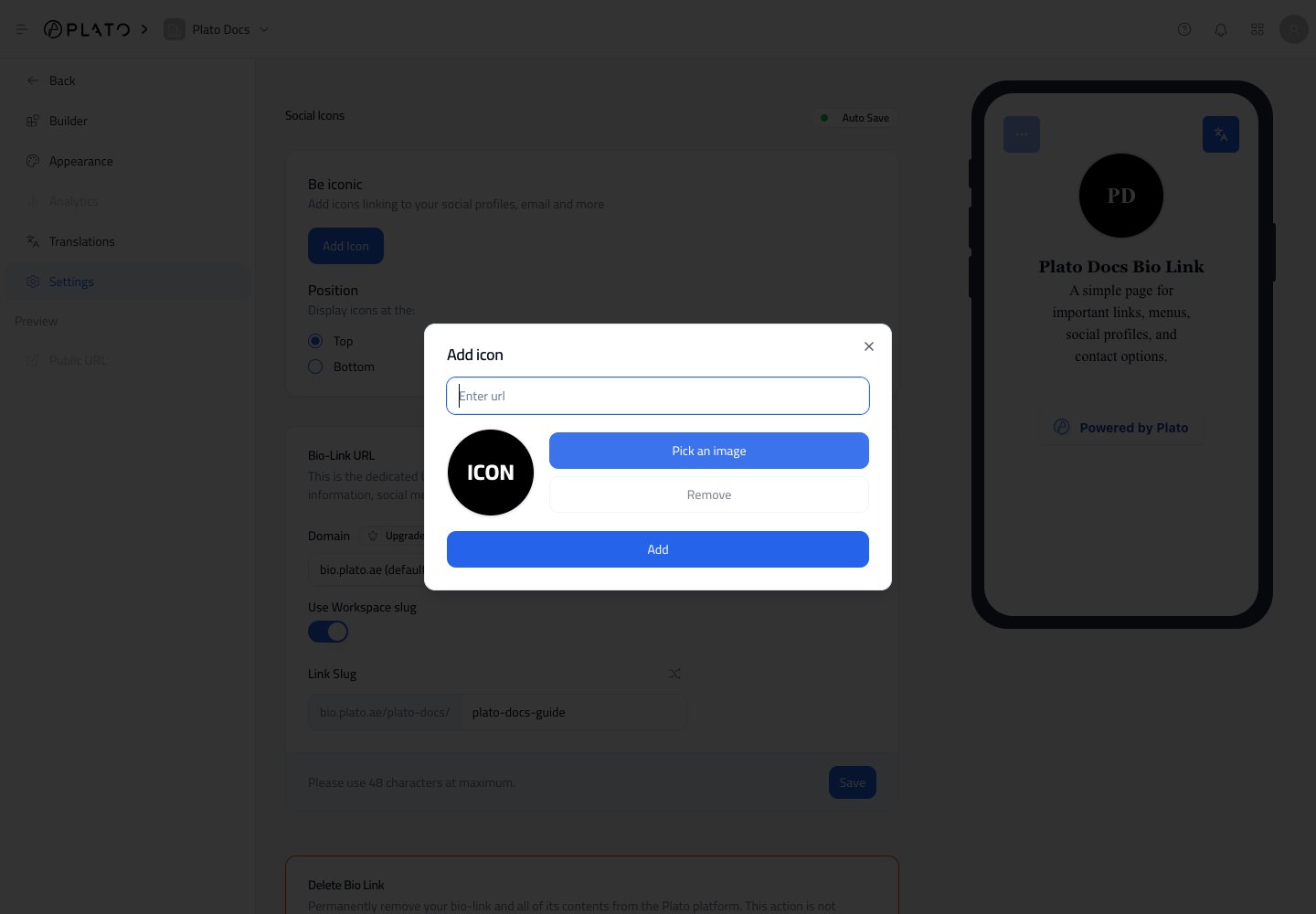 Add the destination URL, then choose an icon image from Plato Drive. Social icon changes auto-save after a short moment.
Use social icons for channels such as Instagram, TikTok, WhatsApp, YouTube, email, maps, or any important profile.
## Choose Icon Position
Use the `Top` or `Bottom` position choice to decide where icons appear on the public page.
Top is usually best for social profiles visitors should notice immediately. Bottom is better when the main page content should come first.
## Update The Public URL
The Bio-Link URL section controls the page address visitors open.
Add the destination URL, then choose an icon image from Plato Drive. Social icon changes auto-save after a short moment.
Use social icons for channels such as Instagram, TikTok, WhatsApp, YouTube, email, maps, or any important profile.
## Choose Icon Position
Use the `Top` or `Bottom` position choice to decide where icons appear on the public page.
Top is usually best for social profiles visitors should notice immediately. Bottom is better when the main page content should come first.
## Update The Public URL
The Bio-Link URL section controls the page address visitors open.
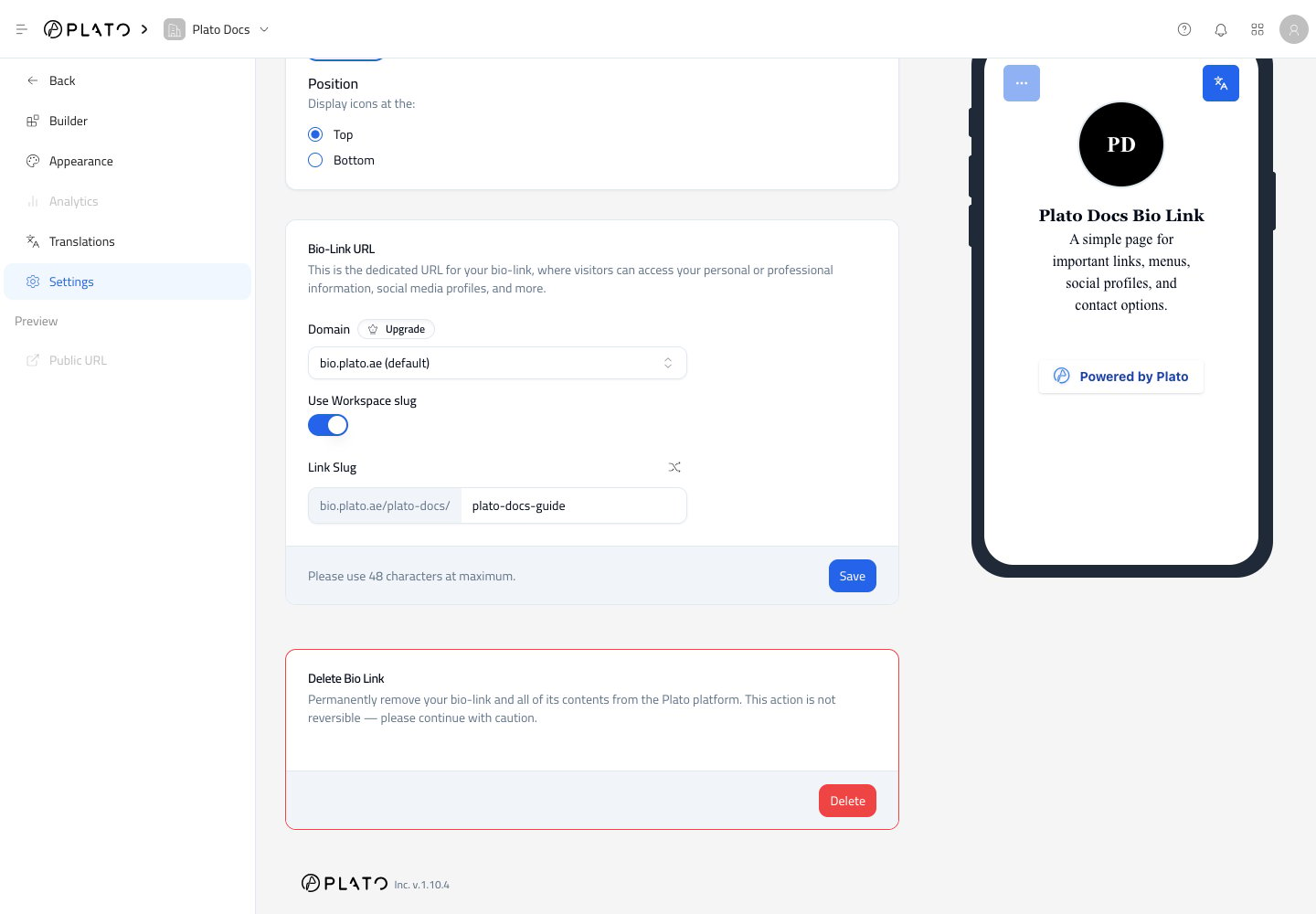 You can update:
* Domain.
* Whether the workspace slug appears in the URL.
* Link slug.
Click `Save` after changing URL settings.
## Use A Custom Domain
Custom domains appear in the domain dropdown after they are connected to Bio Link.
Set up the domain first from [Domains](/console/domains), then return to Bio Link settings and select it from the dropdown.
## Delete Carefully
The delete section permanently removes the Bio Link and its content.
Only delete a Bio Link when you are sure the public URL, QR codes, and shared links are no longer needed.
You can update:
* Domain.
* Whether the workspace slug appears in the URL.
* Link slug.
Click `Save` after changing URL settings.
## Use A Custom Domain
Custom domains appear in the domain dropdown after they are connected to Bio Link.
Set up the domain first from [Domains](/console/domains), then return to Bio Link settings and select it from the dropdown.
## Delete Carefully
The delete section permanently removes the Bio Link and its content.
Only delete a Bio Link when you are sure the public URL, QR codes, and shared links are no longer needed.