> ## Documentation Index
> Fetch the complete documentation index at: https://docs.plato.ae/llms.txt
> Use this file to discover all available pages before exploring further.
# Create And Manage
> Create Bio Links, open an existing link, and understand the main list page.
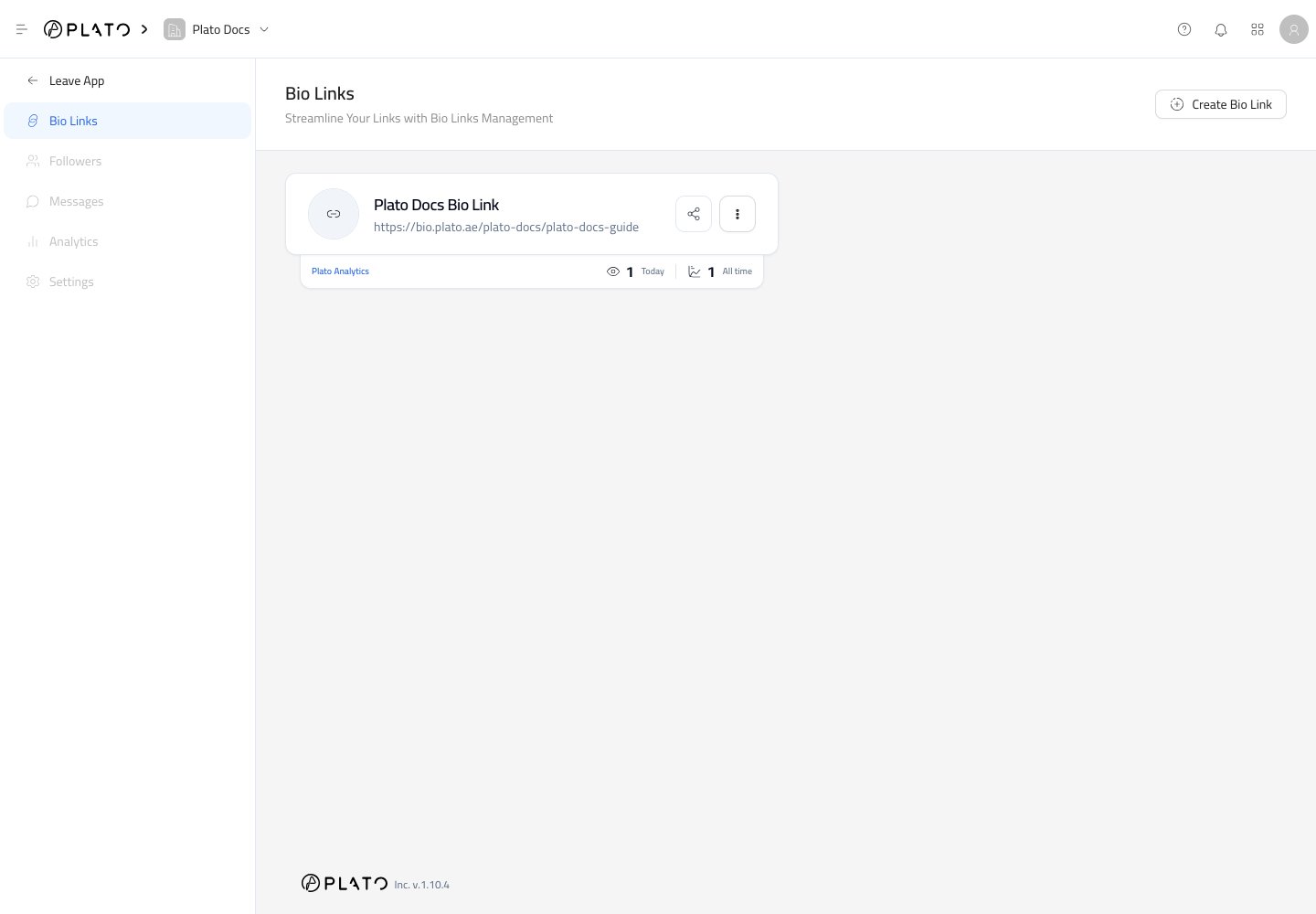
The Bio Links page is where you create and manage the public link pages for your workspace.
 ## Create A Bio Link
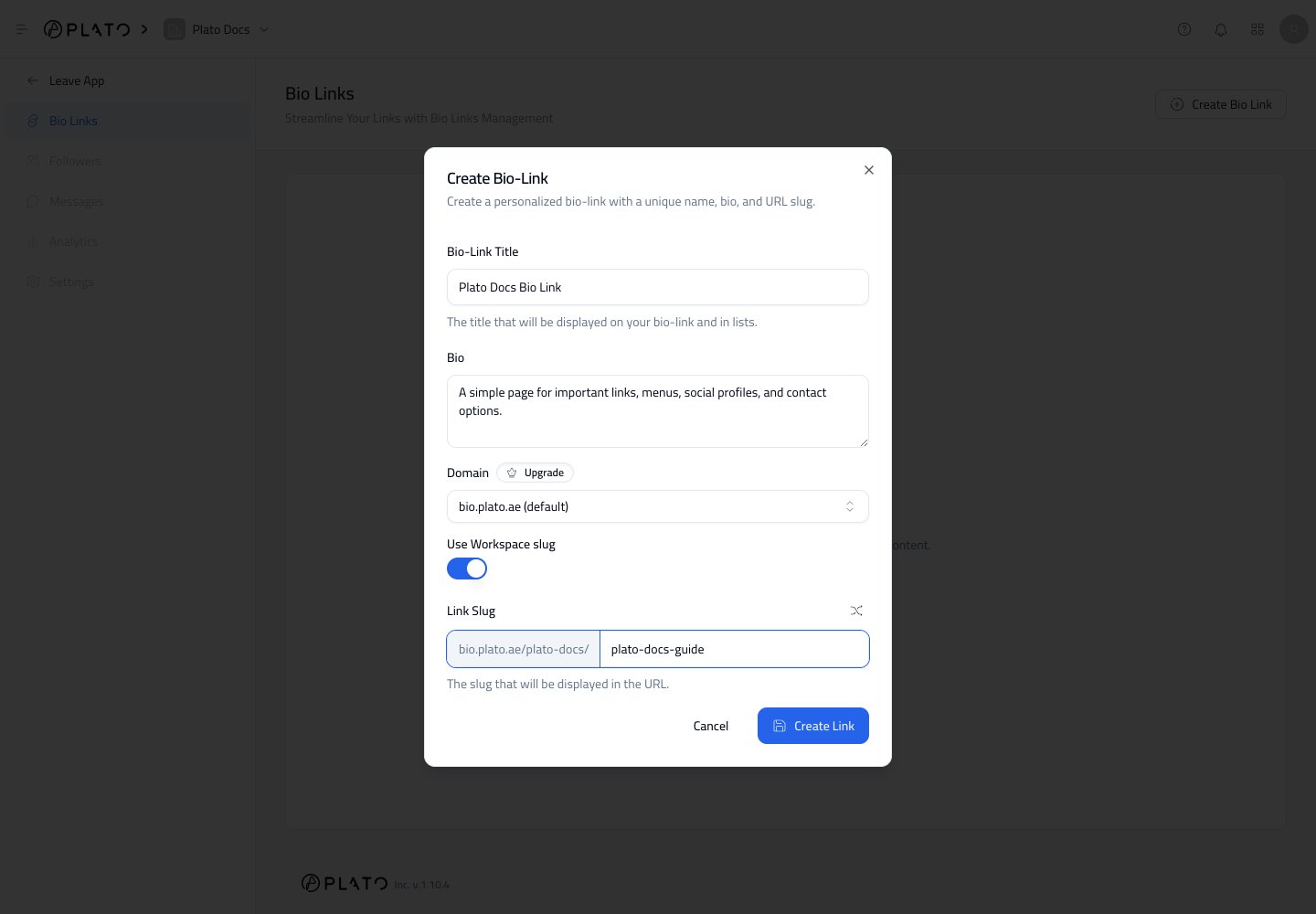
1. Open `Bio Link` from the Plato Console.
2. Click `Create Bio Link`.
3. Add a clear title.
4. Add a short bio that explains what visitors will find on the page.
5. Keep the default domain, or choose a custom domain if one is available.
6. Choose whether to include the workspace slug in the URL.
7. Add a simple link slug.
8. Click `Create Link`.
## Create A Bio Link
1. Open `Bio Link` from the Plato Console.
2. Click `Create Bio Link`.
3. Add a clear title.
4. Add a short bio that explains what visitors will find on the page.
5. Keep the default domain, or choose a custom domain if one is available.
6. Choose whether to include the workspace slug in the URL.
7. Add a simple link slug.
8. Click `Create Link`.
 Use a short slug that is easy to read, print, and say out loud. For example, `summer-menu`, `downtown`, or `catering`.
## Open A Bio Link
After a Bio Link exists, click its card to open the editor.
Each card shows the public URL and quick actions for sharing or managing the link.
## View Basic Performance
The small analytics strip below each card shows recent views and all-time views. Use this as a quick health check after sharing a link, launching a QR code, or publishing a campaign.
## Mark A Primary Link
Open the three-dot menu on a Bio Link card when you need more actions. From there, you can edit the link, open translations, or mark the link as primary.
Use a primary Bio Link for the main page your workspace wants to promote most often.
Use a short slug that is easy to read, print, and say out loud. For example, `summer-menu`, `downtown`, or `catering`.
## Open A Bio Link
After a Bio Link exists, click its card to open the editor.
Each card shows the public URL and quick actions for sharing or managing the link.
## View Basic Performance
The small analytics strip below each card shows recent views and all-time views. Use this as a quick health check after sharing a link, launching a QR code, or publishing a campaign.
## Mark A Primary Link
Open the three-dot menu on a Bio Link card when you need more actions. From there, you can edit the link, open translations, or mark the link as primary.
Use a primary Bio Link for the main page your workspace wants to promote most often.