> ## Documentation Index
> Fetch the complete documentation index at: https://docs.plato.ae/llms.txt
> Use this file to discover all available pages before exploring further.
# إضافة المنتجات إلى القائمة
> أضف المنتجات الموجودة إلى منشئ القائمة.
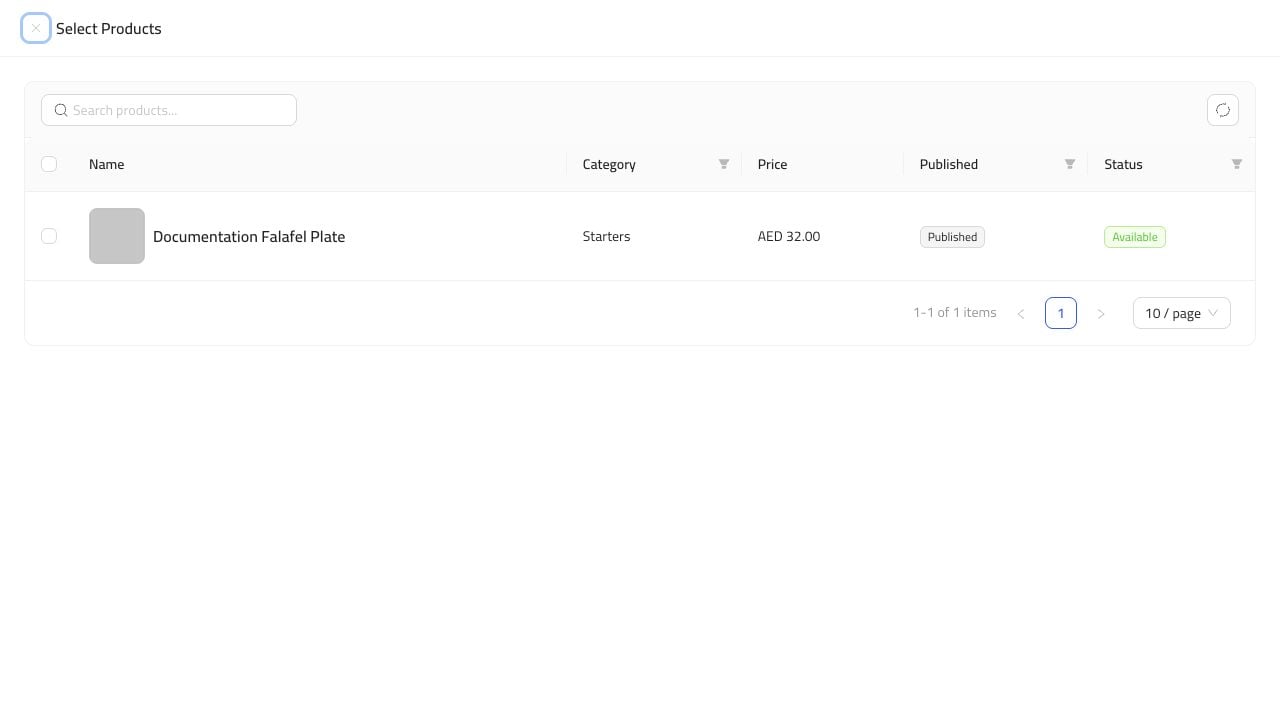
استخدم `Select Products` عندما يكون المنتج موجودًا بالفعل في كتالوج المنتجات.
 ## إضافة المنتجات الموجودة
1. افتح القائمة.
2. انتقل إلى `Builder`.
3. انقر فوق `Add Block`.
4. اختر `Select Products`.
5. ابحث عن المنتج أو تصفحه.
6. حدد صف المنتج.
7. انقر فوق زر الإضافة.
8. احفظ القائمة.
## بعد الإضافة
يظهر المنتج ككتلة في المنشئ.
## إضافة المنتجات الموجودة
1. افتح القائمة.
2. انتقل إلى `Builder`.
3. انقر فوق `Add Block`.
4. اختر `Select Products`.
5. ابحث عن المنتج أو تصفحه.
6. حدد صف المنتج.
7. انقر فوق زر الإضافة.
8. احفظ القائمة.
## بعد الإضافة
يظهر المنتج ككتلة في المنشئ.
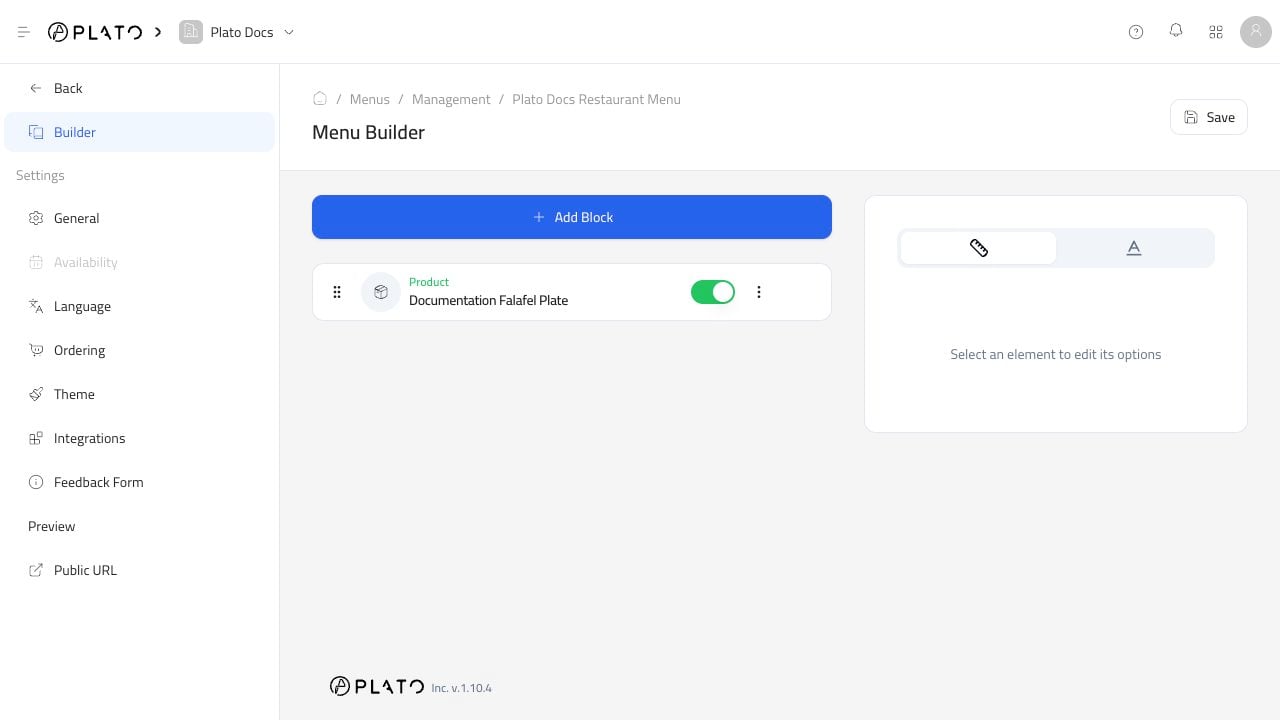 افتح القائمة العامة بعد الحفظ حتى تتمكن من التأكد من أن العنصر مرئي للعملاء.