> ## Documentation Index
> Fetch the complete documentation index at: https://docs.plato.ae/llms.txt
> Use this file to discover all available pages before exploring further.
# ابحث عن الطلبات واستخدم المرشحات
> بحث، تصفية، فتح، نسخ، ومراجعة أوامر POS.
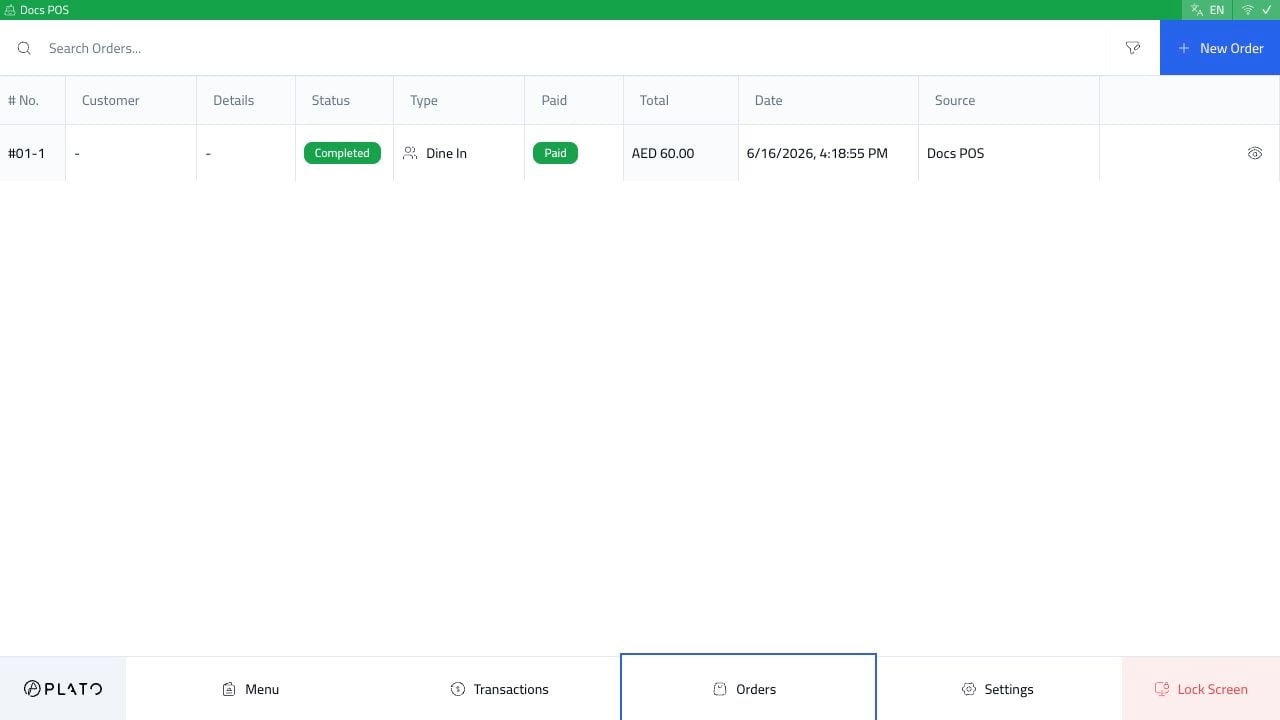
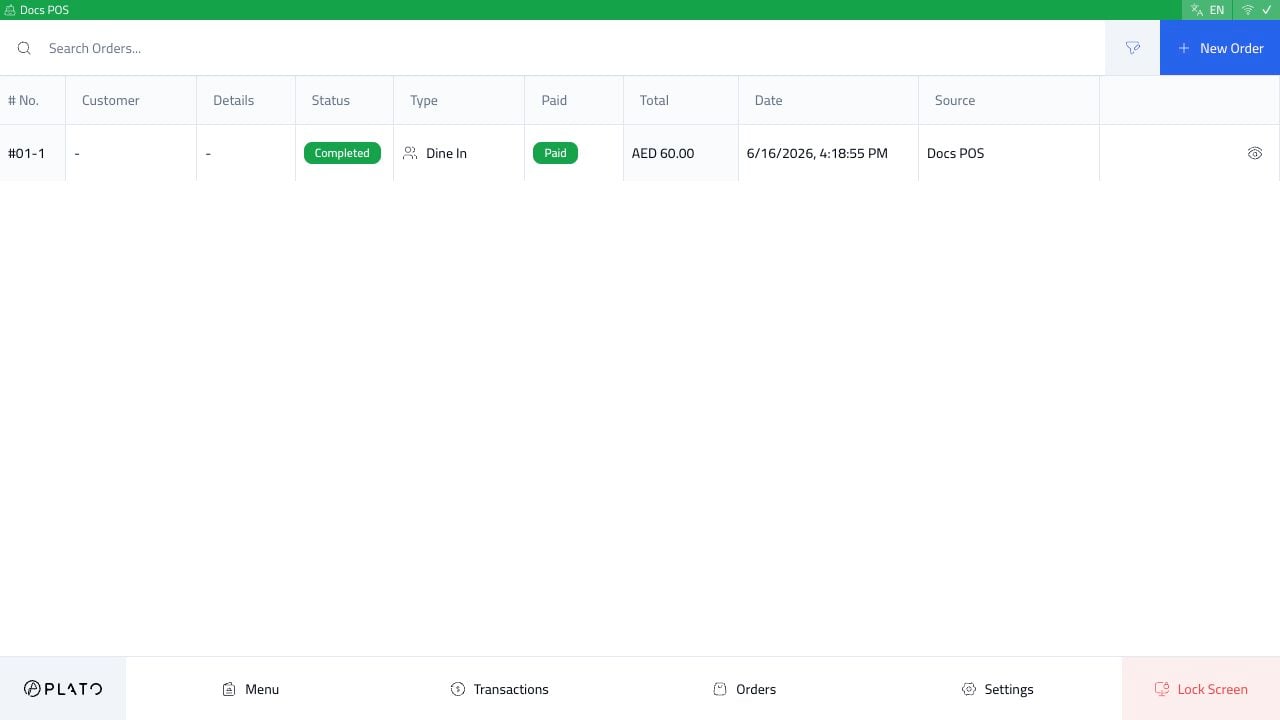
استخدم `Orders` من الشريط السفلي POS لفتح قائمة الطلبات.
 ## متى تستخدمه
افتح قائمة الطلبات عندما يحتاج الموظفون إلى:
* ابحث عن أمر موجود.
* متابعة المسودة أو الأمر النشط.
* مراجعة الطلبات المعلقة عبر الإنترنت.
* التحقق من حالة الطلب.
* أعد فتح الأمر أو انسخه عندما يُسمح بذلك.
## أوامر البحث
استخدم مربع البحث عندما تعرف رقم الطلب أو العميل أو المرجع المرئي.
## افتح عوامل التصفية
انقر على أيقونة التصفية بالقرب من مربع البحث.
## متى تستخدمه
افتح قائمة الطلبات عندما يحتاج الموظفون إلى:
* ابحث عن أمر موجود.
* متابعة المسودة أو الأمر النشط.
* مراجعة الطلبات المعلقة عبر الإنترنت.
* التحقق من حالة الطلب.
* أعد فتح الأمر أو انسخه عندما يُسمح بذلك.
## أوامر البحث
استخدم مربع البحث عندما تعرف رقم الطلب أو العميل أو المرجع المرئي.
## افتح عوامل التصفية
انقر على أيقونة التصفية بالقرب من مربع البحث.
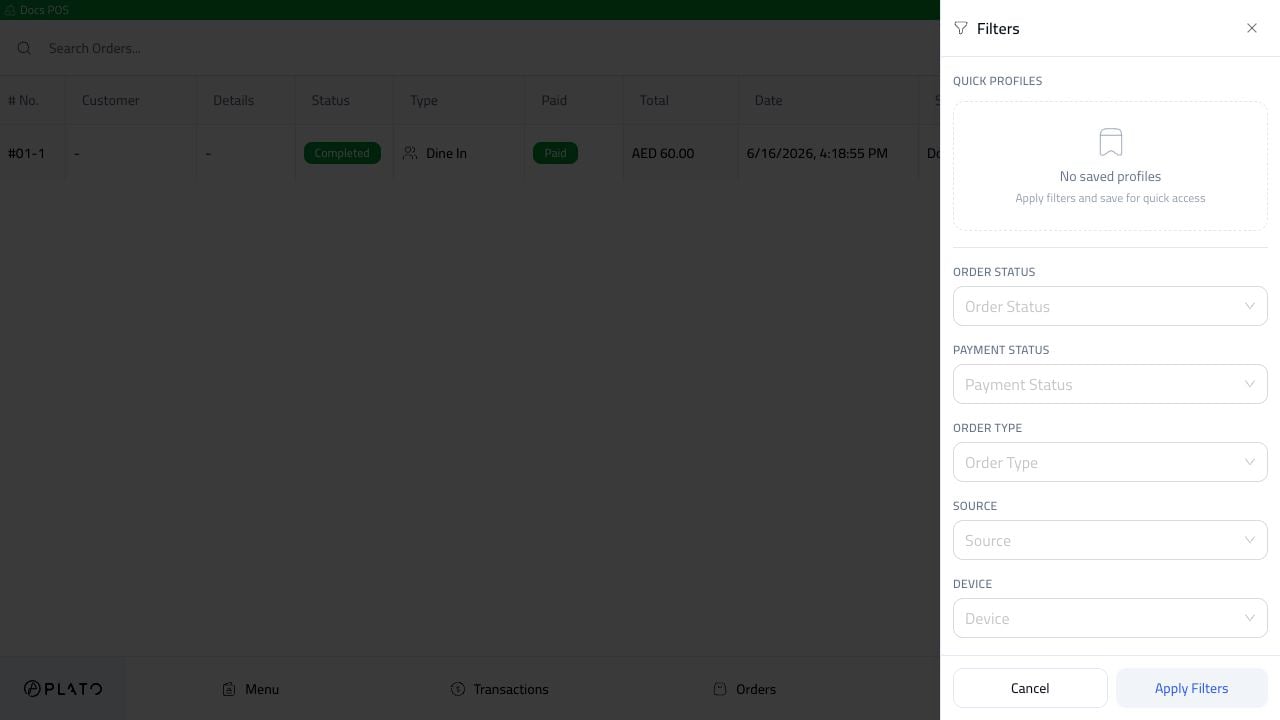 استخدم عوامل التصفية عندما تكون القائمة مشغولة ويحتاج الموظفون إلى مجموعة محددة من الطلبات.
## تصفية حسب الحالة
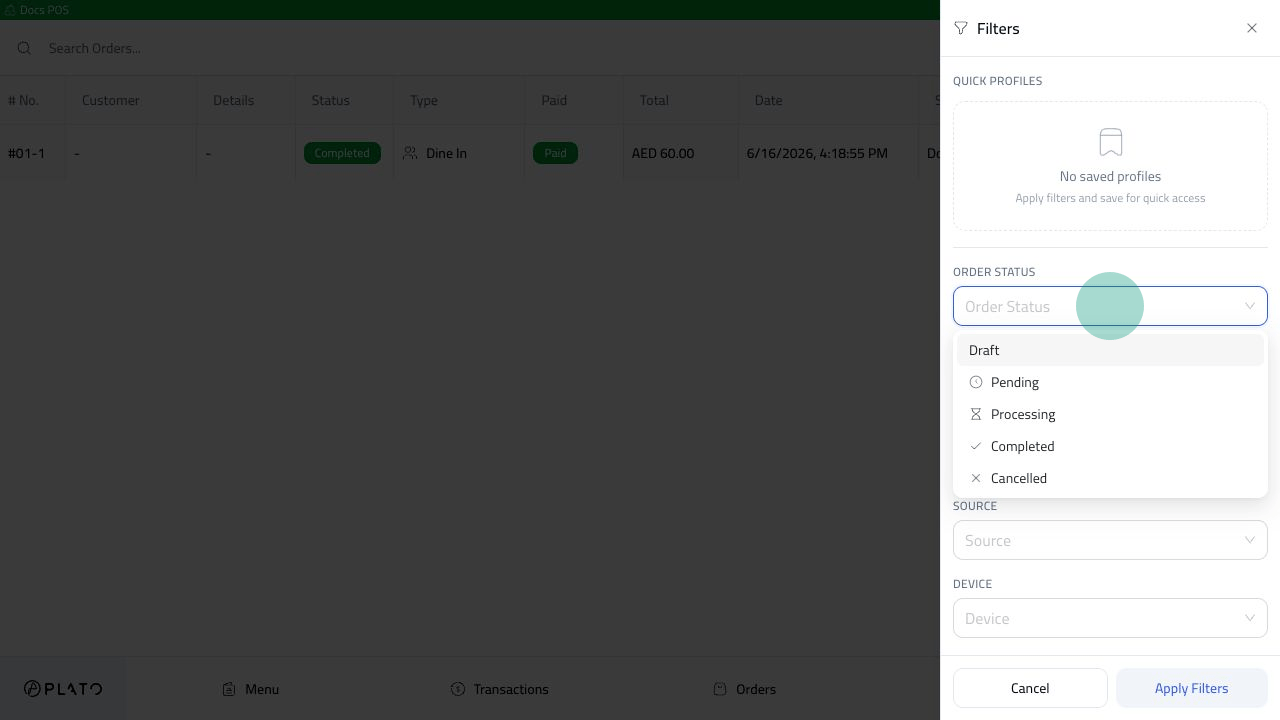
افتح `Order Status` للتصفية حسب:
* مسودة.
* قيد الانتظار.
* يعالج.
* مكتمل.
* تم الإلغاء.
استخدم عوامل التصفية عندما تكون القائمة مشغولة ويحتاج الموظفون إلى مجموعة محددة من الطلبات.
## تصفية حسب الحالة
افتح `Order Status` للتصفية حسب:
* مسودة.
* قيد الانتظار.
* يعالج.
* مكتمل.
* تم الإلغاء.
 بعد تحديد مرشح، يعرض Plato عدد المرشحات النشطة.
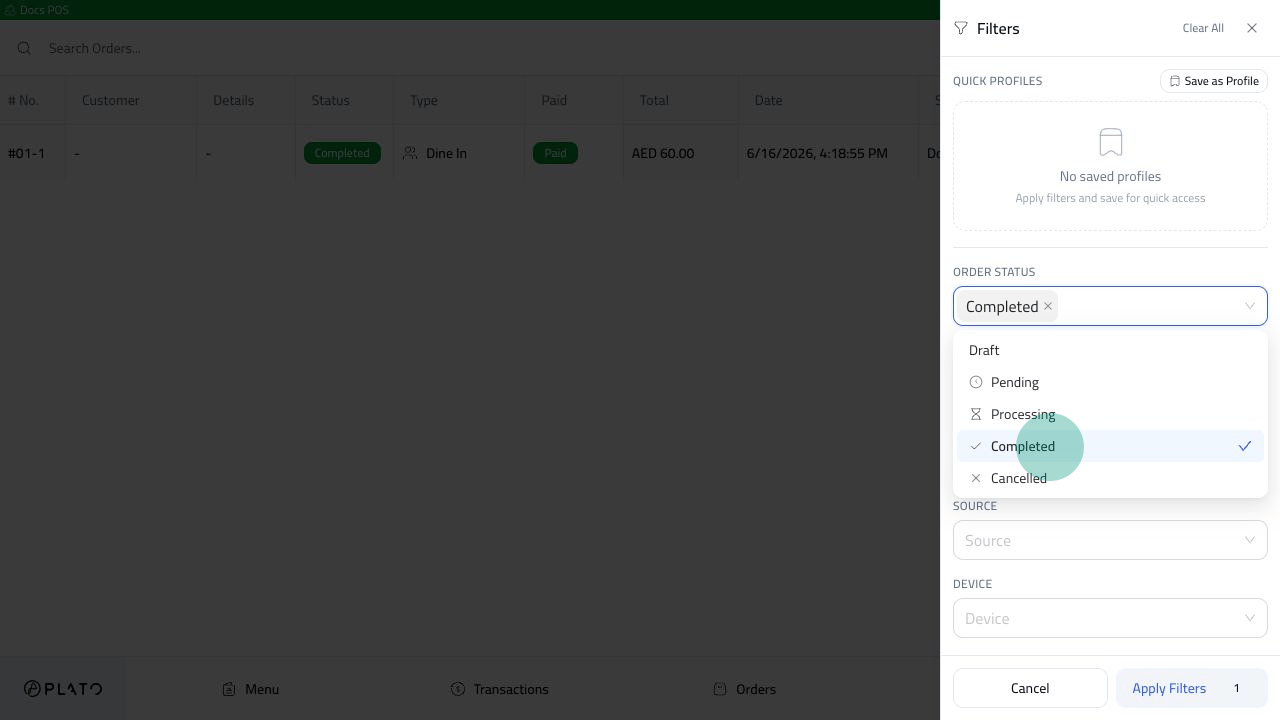 انقر فوق `Apply Filters` لتحديث القائمة.
 ## افتح طلبًا من القائمة
انقر فوق زر العرض الموجود في صف الطلب.
## افتح طلبًا من القائمة
انقر فوق زر العرض الموجود في صف الطلب.
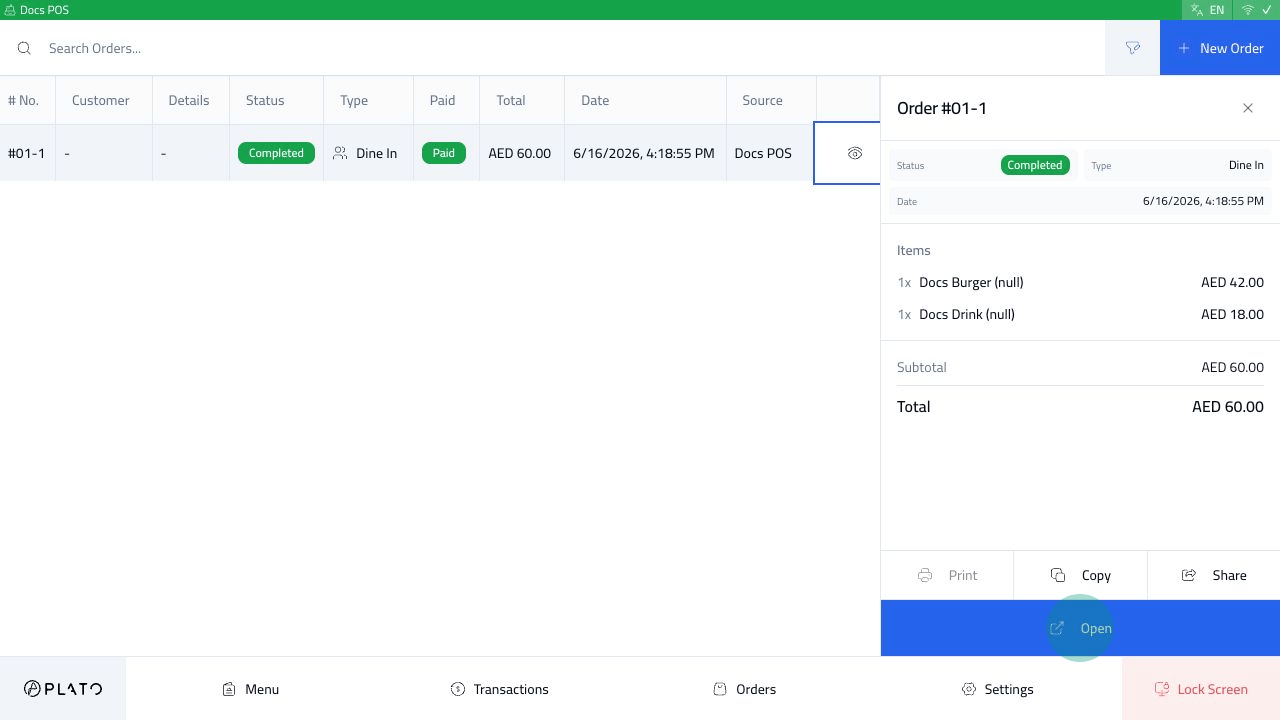 يعرض الدرج الحالة ونوع الطلب والتاريخ والعناصر والإجماليات والإجراءات السريعة مثل الطباعة والنسخ والمشاركة والفتح.
## التنقل بلوحة المفاتيح
إذا تم تمكين التنقل عبر لوحة المفاتيح في تكوين POS، فيمكن للموظفين التنقل عبر جدول الطلبات بشكل أسرع باستخدام مفاتيح الأسهم.
يعرض الدرج الحالة ونوع الطلب والتاريخ والعناصر والإجماليات والإجراءات السريعة مثل الطباعة والنسخ والمشاركة والفتح.
## التنقل بلوحة المفاتيح
إذا تم تمكين التنقل عبر لوحة المفاتيح في تكوين POS، فيمكن للموظفين التنقل عبر جدول الطلبات بشكل أسرع باستخدام مفاتيح الأسهم.